Adding Bid Due Dates
Last updated: August 7, 2025
Watch Video Demo Here
Overview
Keeping track of bid deadlines is crucial for any successful project-based business. This tutorial will guide you through setting, viewing, and managing bid due dates within your projects. By effectively using this feature, you can ensure timely submissions, improve team coordination, and gain better visibility over your project pipeline.
Insight: Setting bid due dates provides crucial visibility into your project pipeline, ensuring timely bid submissions and improved win rates.
Step-by-Step Instructions
Setting a Bid Due Date When Creating a New Project
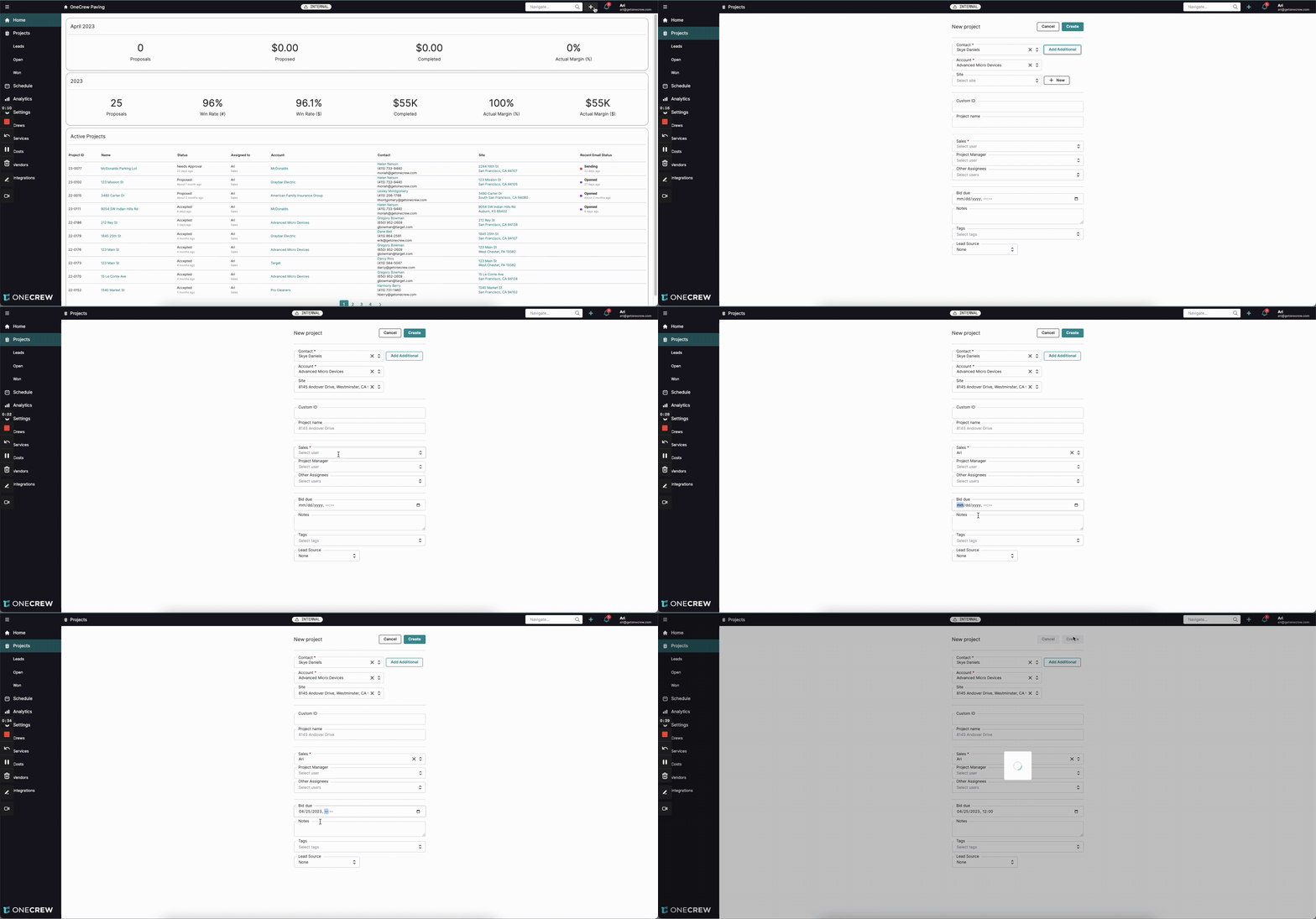
You can assign a bid due date right from the start.
Click the + (plus) icon in the top right corner of the screen.
Select New project from the dropdown menu.
Fill in the required project details such as Contact, Account, Site, and assign a Sales user.
Locate the Bid due field. It will display "mm/dd/yyyy, --:--".
Enter the desired date in MM/DD/YYYY format and the time in HH:MM format (e.g., "04/25/2023, 12:00").
Complete any other relevant fields for the new project.
Click the Create button.
Expected Outcome: The project is created, and the bid due date is saved. You'll be redirected to the newly created project's page.
Viewing and Understanding Bid Due Dates
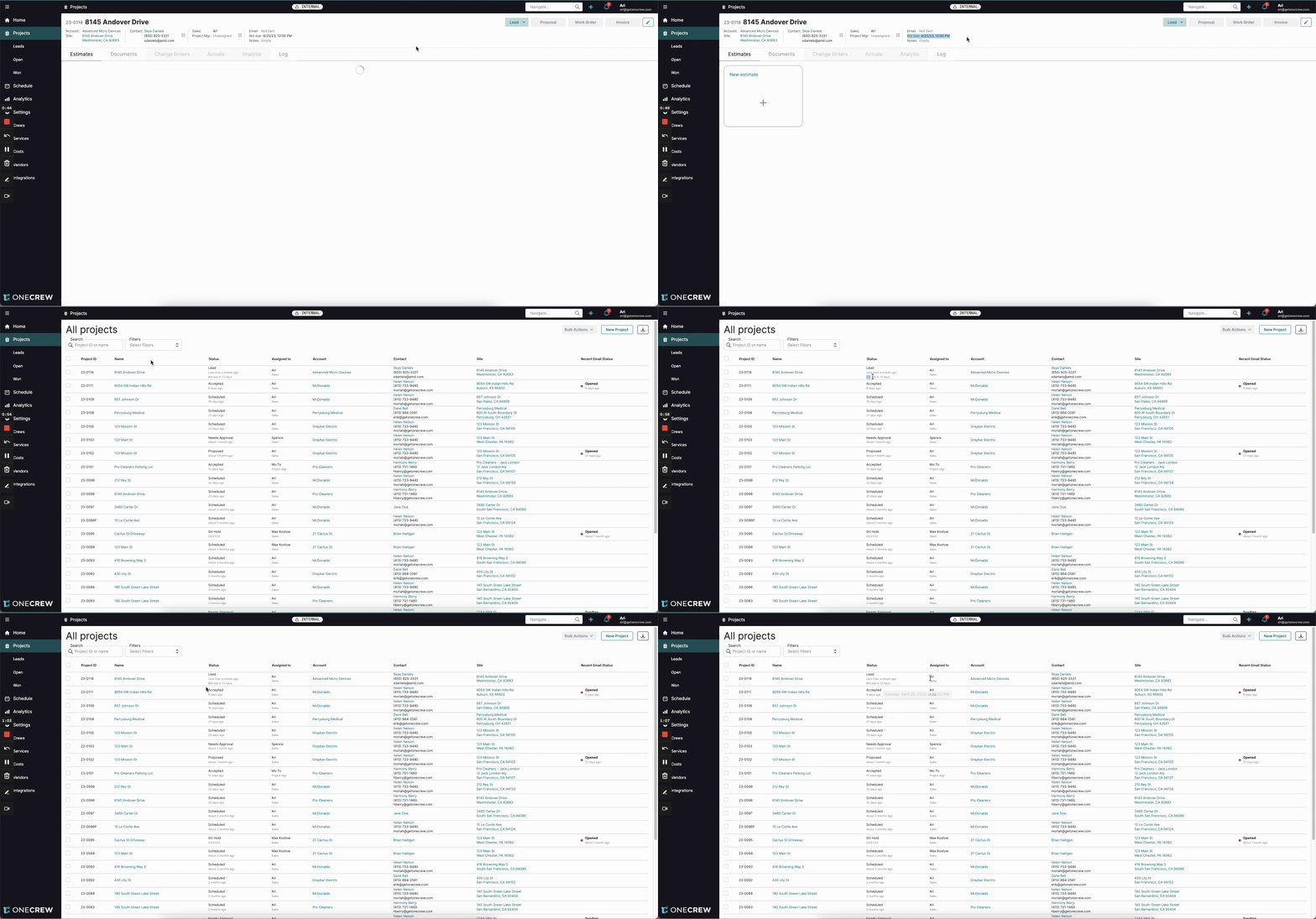
Once set, the bid due date is visible in several places:
Project Page: On the individual project page, the Bid due date and time are displayed in the project header information (e.g., "Bid due: 4/25/23, 12:00 PM").
All Projects List:
Navigate to the All projects list.
Locate your project. Under the Status column, you'll see a relative due date (e.g., "Bid due in 13 days").
Hover your mouse over this text to see the exact date and time (e.g., "Tuesday, April 25, 2023 at 12:00 PM").
Visual Cue: This text will change color as the due date approaches: it will turn yellow and then red to indicate urgency.
Pro tip: The assigned salesperson on the project will automatically receive in-app and email notifications two days before, one day before, and on the day the bid is due.
Editing a Bid Due Date for an Existing Project
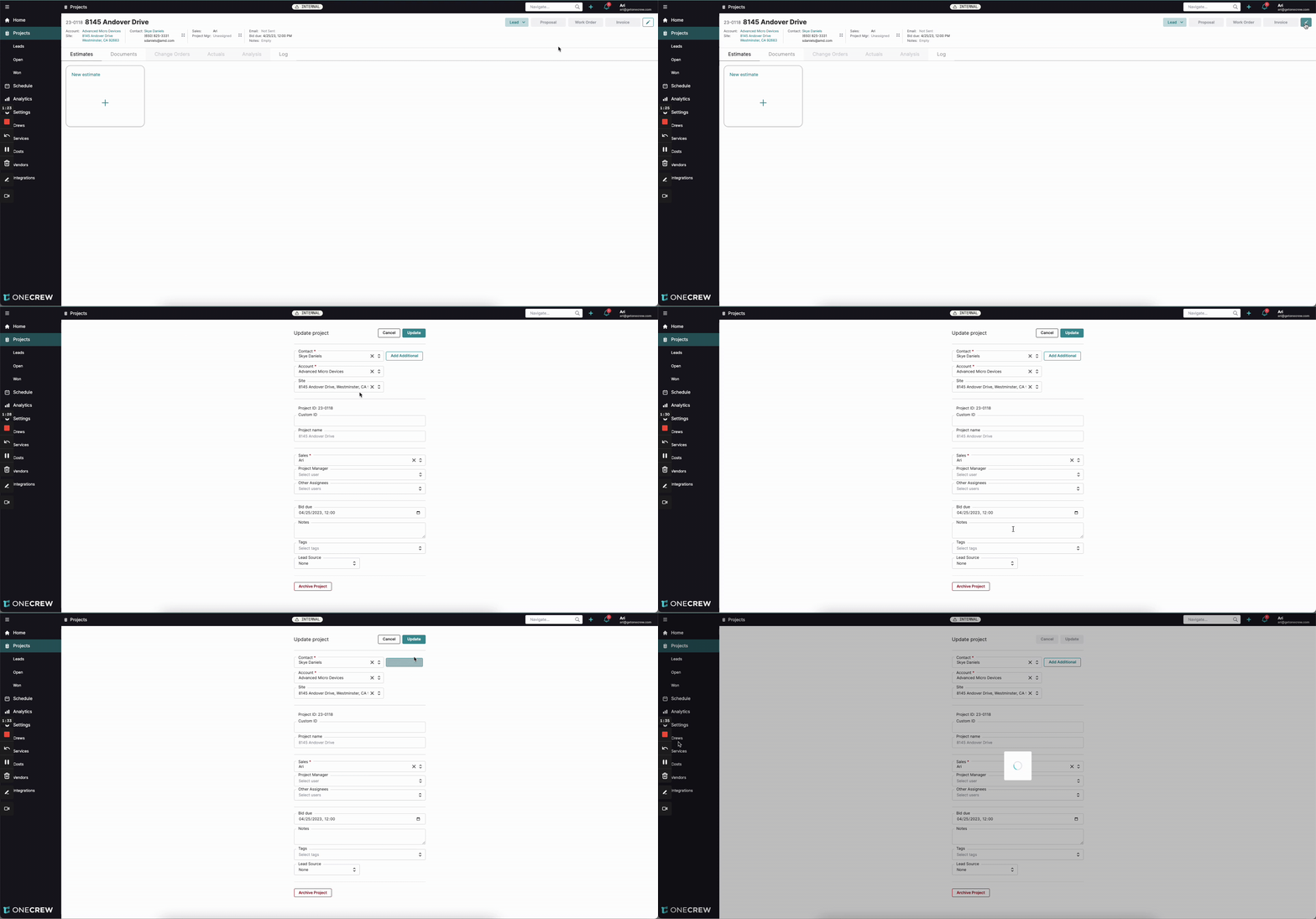
If a deadline changes or was not set initially, you can easily add or modify it.
Navigate to the specific project you wish to update.
From the project page, click on the project details section (often the project name or an edit icon/button) to open the Update project form. (The video shows clicking the project name to get to the project details page, then clicking the displayed bid due date, which opens the "Update project" modal).
Locate the Bid due field.
Modify the date and/or time as needed. You can also add a bid due date here if one wasn't set previously.
Click the Update button.
Expected Outcome: The project's bid due date is updated, and the changes are reflected on the project page and in the projects list.
Troubleshooting
Bid due date not visible in the project list: Ensure the project has a bid due date set. If it was recently set, a page refresh might be needed.
Salesperson not receiving notifications:
Confirm that a Sales user is correctly assigned to the project.
Check the user's notification settings within the platform (if applicable) and their email client for any filters or spam issues.
Incorrect date or time format: Always use MM/DD/YYYY for the date and HH:MM (e.g., 14:30 for 2:30 PM) for the time to ensure it's parsed correctly. The system might also support AM/PM notation.