Linking Multiple Elements to Services
Last updated: August 7, 2025
Watch Video Demo Here
Overview
Efficiently creating detailed estimates often involves associating multiple measurements or site areas with specific services. This tutorial will guide you through using the multi-select feature on the mapping tool to quickly link various marked areas on your project map directly to services within your estimate. This process helps ensure accuracy and saves time, especially for projects with numerous distinct service locations.
Step-by-Step Guide
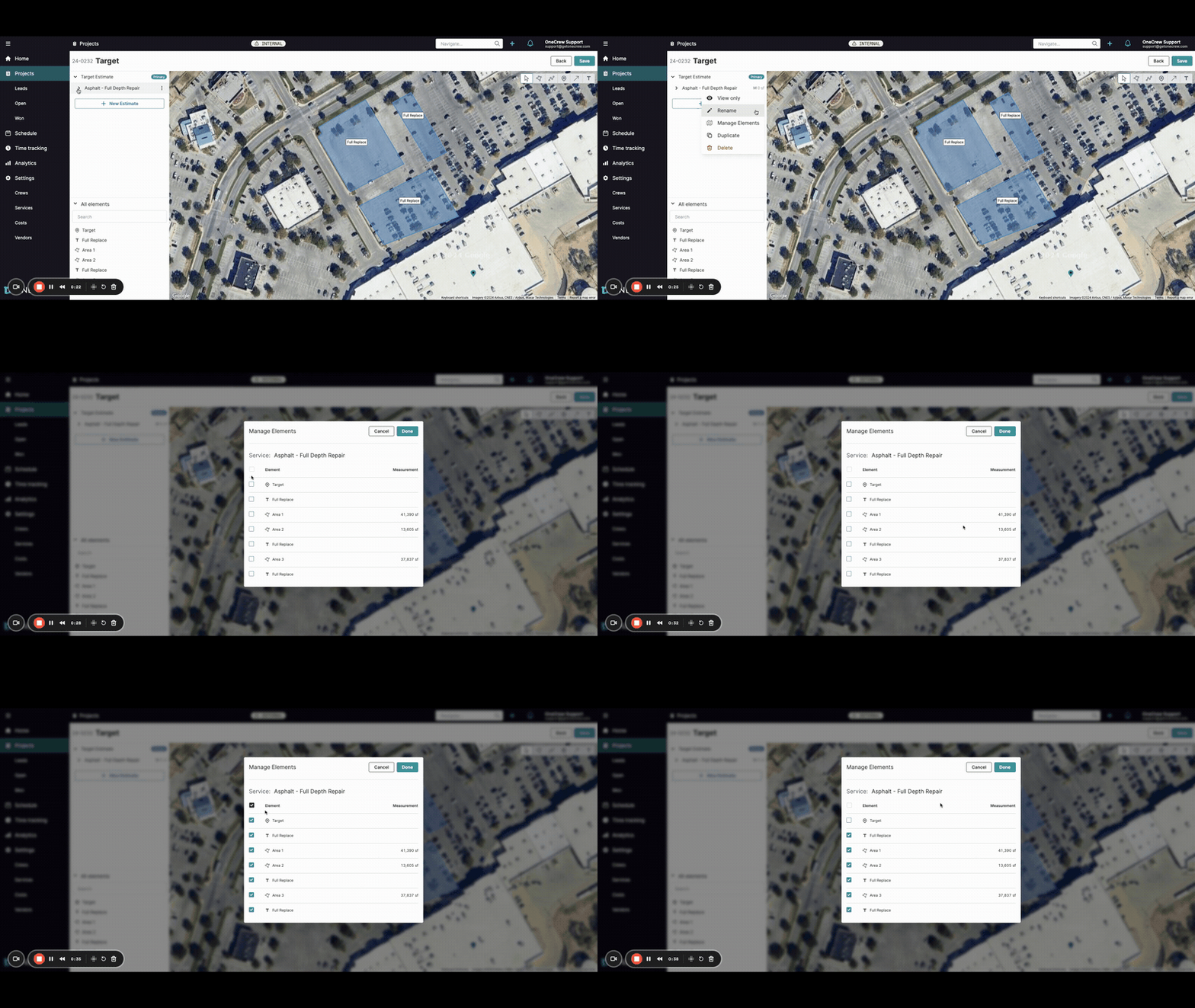
Follow these steps to associate your mapped elements with services in your project estimate.
Associating Map Elements with an Existing Service
If you have already created services in your estimate and want to link existing map takeoffs (like areas or text labels) to them:
Navigate to the Projects section and select your project.
Click on the Map tab. You will see your project site with any previously marked-out areas or elements.
On the left-hand panel, under your Target Estimate, locate the service you want to update (e.g., "Asphalt - Full Depth Repair").
Click the three-dot menu icon (⋮) to the right of the service name.
Select Manage Elements from the dropdown menu.
A Manage Elements dialog will appear, listing all available map elements (e.g., "Area 1", "Area 2", "Full Replace" text labels).
Check the boxes next to each map element you want to associate with this specific service. You can use the top checkbox to select or deselect all elements.
Click the Done button. The selected map elements, along with their measurements (e.g., square footage), will now be listed under that service in the left panel, and the total measurement for the service will update accordingly.
Insight: The Manage Elements feature provides a clear, centralized list of all your map takeoffs. This makes it incredibly simple to assign specific measurements to different line items in your estimate, ensuring every part of the job is accurately accounted for.
Adding a New Service and Associating Map Elements
If you need to add a new service to your estimate and then link map elements to it:
While on the Map tab, locate your Target Estimate in the left-hand panel.
Click the three-dot menu icon (⋮) to the right of the estimate name (e.g., "Target Estimate").
Select Add service from the dropdown menu.
In the Add service dialog:
Choose the desired Service from the dropdown list (e.g., "Sealcoat - Commercial").
Select the appropriate Estimate Type.
Click the Add button.
The new service will now appear under your estimate in the left panel.
Click the three-dot menu icon (⋮) to the right of this newly added service.
Select Manage Elements.
In the Manage Elements dialog, check the boxes for the map elements you want to associate with this new service.
Click Done. The selected map elements and their measurements will be linked to your new service, and the details will appear in the left panel.
Pro Tip: If you want to create an entirely new estimate from the map view, you can click the + New Estimate button located in the left panel. You can then add services and link map elements as described above.
Troubleshooting
Encountering issues? Here are some common problems and their solutions:
Map elements not appearing in the 'Manage Elements' list:
Ensure the elements (areas, text labels, etc.) have been properly drawn and saved on the map interface before attempting to associate them with a service.
If you use filters on your map, ensure they are not hiding the elements you wish to select.
Incorrect total measurements for a service:
Re-open the Manage Elements dialog for the service and double-check that only the intended map elements are selected.
Verify the individual measurements of each map element on the map itself. The system sums the measurements of all linked elements.
"Manage Elements" option is missing:
The Manage Elements option is found in the menu (three dots) next to a specific service line item within an estimate.
To add a new service to an estimate first (before managing its elements), use the three-dot menu next to the estimate name and select Add service.