Correcting Points in Mapped Areas
Last updated: September 19, 2025
Watch Video Demo Here
Overview
Accurately mapping areas is crucial for precise estimates and clear project visualization. This tutorial provides a step-by-step guide on how to correct or remove misplaced points when defining an area on the map. Whether you've accidentally clicked the wrong spot or need to refine a boundary after your initial drawing, these methods will help you ensure your mapped areas are accurate.
Step-by-Step Guide
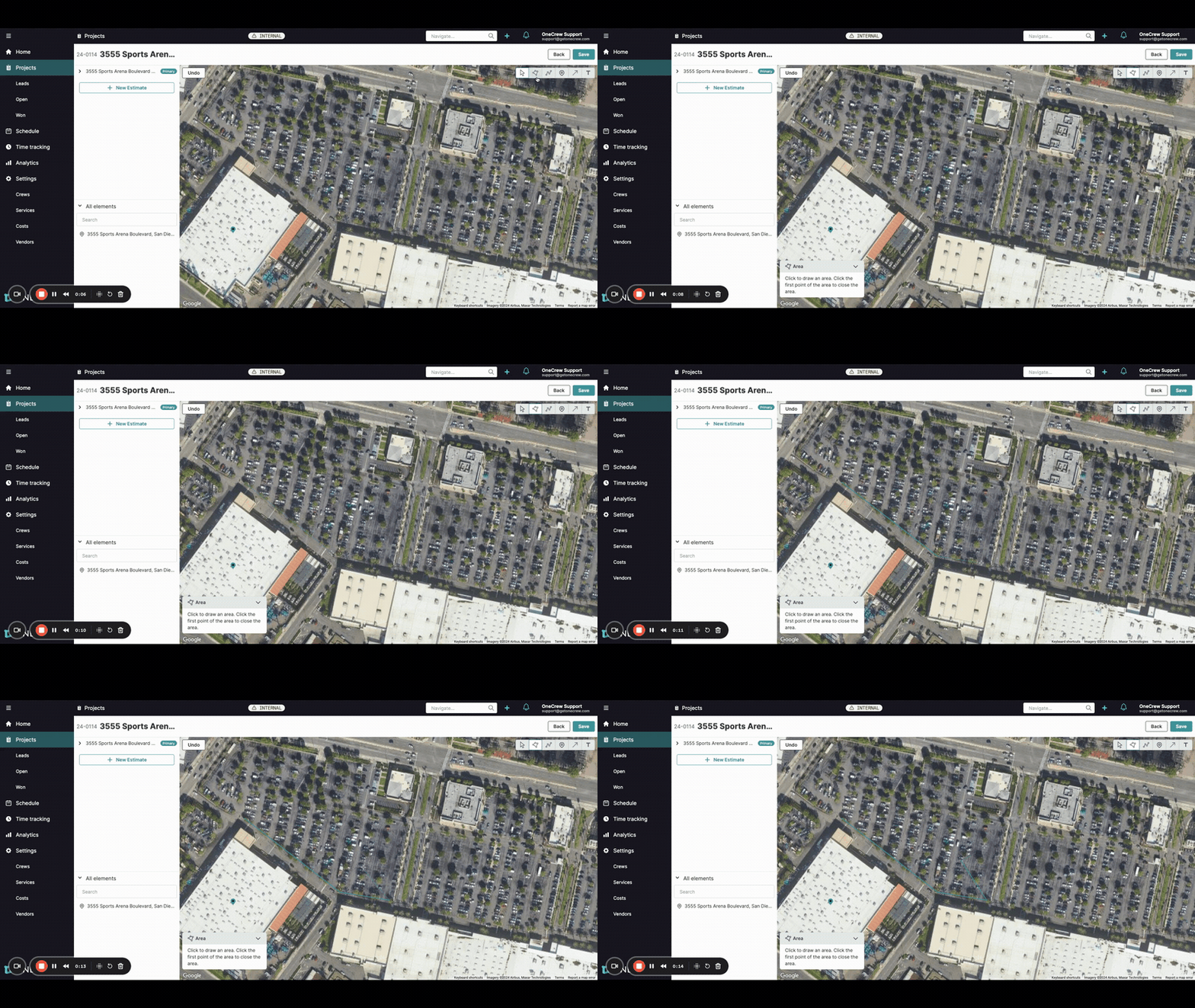
Once you've started drawing an area, you might find a point is out of place. Here’s how to fix it:
Method 1: Adjusting a Point by Dragging
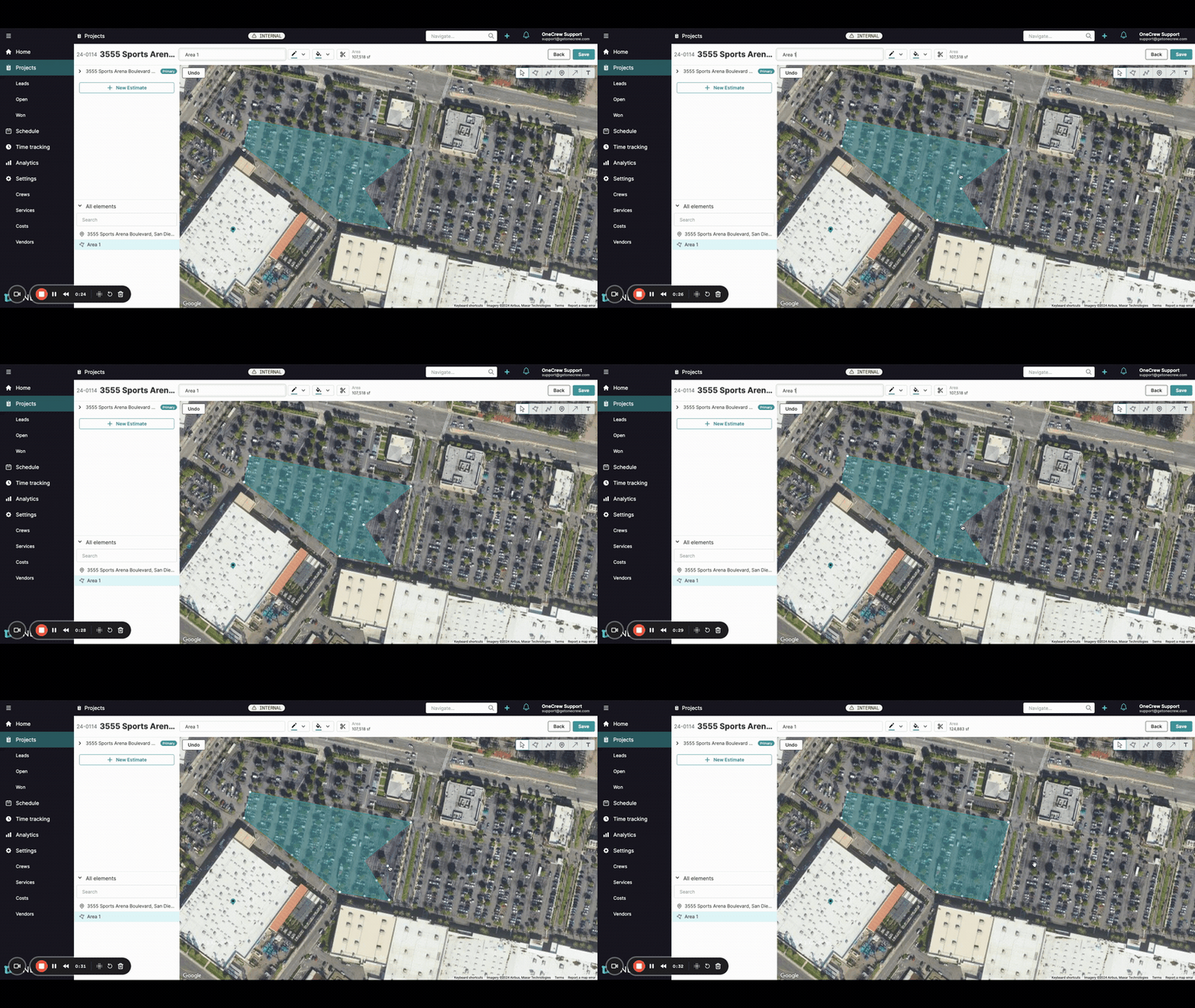
This method is ideal for fine-tuning the position of a point after you've closed the shape.
Complete Initial Area Drawing: Click around the perimeter of the desired area to place your points. To finalize the shape, click on your very first point. The area will typically become highlighted, indicating it's a closed polygon.
Identify the Misplaced Point: Look at your drawn shape and locate the vertex (corner point) that is not in the correct position.
Click and Drag to Adjust: Click directly on the misplaced vertex. You'll often see a small square handle appear on the point. Hold down the mouse button and drag this handle to the desired, accurate location.
Release to Reshape: Once the point is in the correct position, release the mouse button. The polygon will automatically reshape to incorporate the adjusted point, and any associated measurements (like square footage) will update.
Insight: Dragging points allows for quick, visual adjustments to your area boundaries without needing to delete and redraw sections, saving you time and effort.
Method 2: Deleting an Unwanted Point
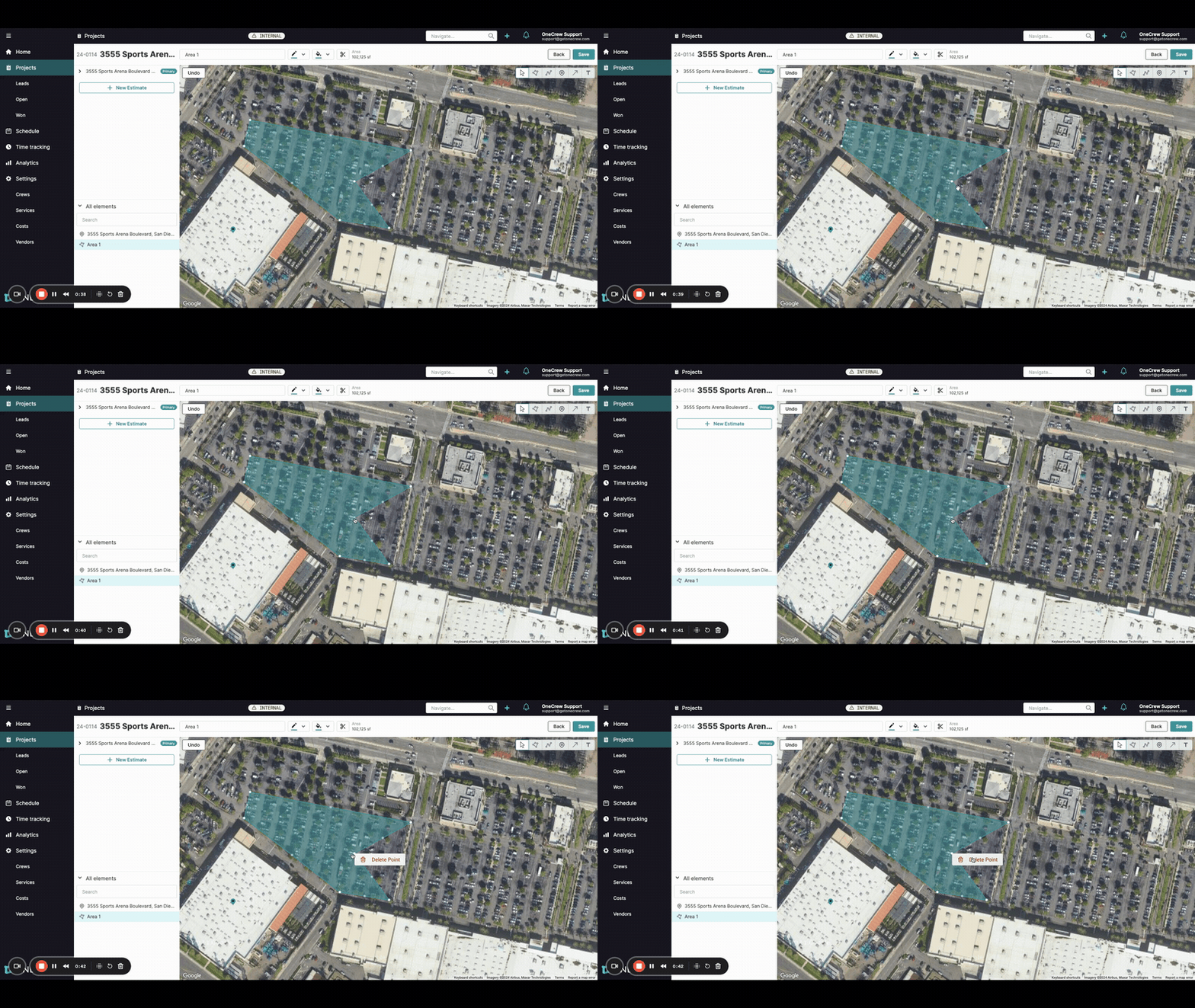
If a point is entirely unnecessary and distorts your area, you can remove it.
Ensure Area is Finalized: Make sure you have completed drawing your area by clicking back on the starting point to close the shape. The area should be selected or highlighted.
Locate the Unwanted Point: Identify the specific vertex you wish to remove from the polygon.
Right-Click on the Point: Position your mouse cursor directly over the center of the unwanted vertex and right-click.
Select "Delete Point": A small context menu should appear next to your cursor. Click on the Delete Point option.
Observe Reshaped Area: The selected point will be removed. The two points that were adjacent to the deleted point will now connect, automatically reshaping the polygon. The area's measurements will also update.
Troubleshooting
Cannot select or drag a point:
Ensure the area you're trying to edit is currently selected or active. It's often highlighted when active.
Try zooming in on the map for more precise interaction with the points.
"Delete Point" option not appearing on right-click:
Double-check that your cursor is precisely over a vertex (a corner point of the shape) when you right-click. Right-clicking on an edge or inside the polygon might not show this option.
Area looks strange after deleting a point:
If deleting a point results in an unworkable shape (e.g., a line instead of an area, or crossed lines), you might need to undo the action if possible. Alternatively, you can drag the remaining points to fix the shape or, in some cases, it might be simpler to delete the entire area and redraw it carefully.