Project Filters: A Comprehensive Guide
Last updated: August 7, 2025
Overview
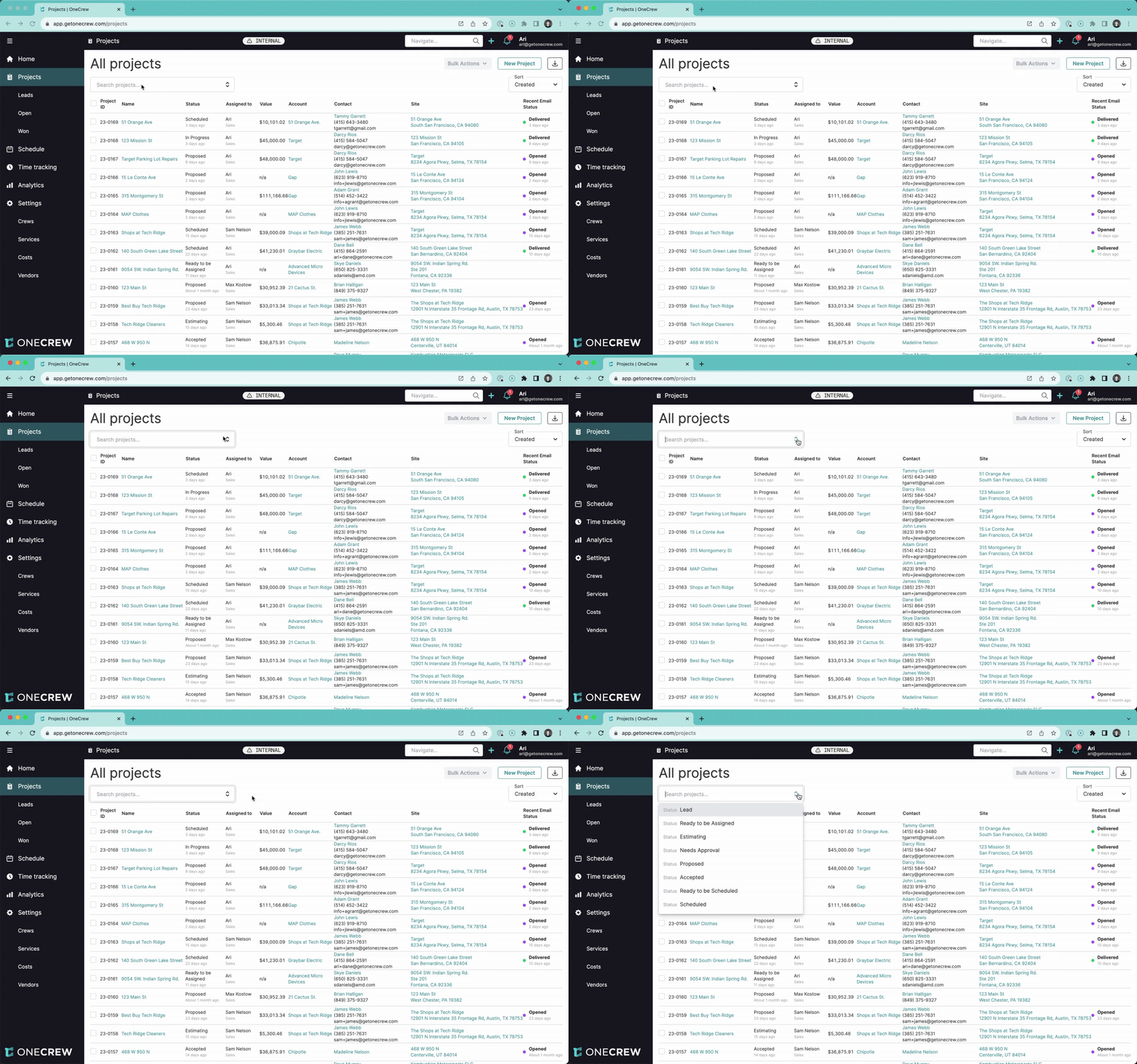
Edit animation
In OneCrew, filters are a powerful tool designed to help you efficiently navigate and analyze your project data. Whether you're viewing your main project list or diving into analytics, filters allow you to narrow down vast amounts of information to focus on what's most relevant to you. The primary purpose of this feature is to provide a quick and flexible way to locate specific projects, segment data for reporting, and gain targeted insights.
Benefits of using filters include:
Speed and Efficiency: Quickly find individual projects or groups of projects without manual scrolling.
Focused Analysis: Isolate data based on specific criteria to understand performance, identify trends, or manage workloads.
Improved Workflow: Streamline daily tasks by creating views tailored to specific needs, such as projects assigned to a particular team member or those at a certain stage.
Insight: Filters transform a potentially overwhelming list of projects and data points into manageable, actionable views, empowering you to make informed decisions faster.
Configuration
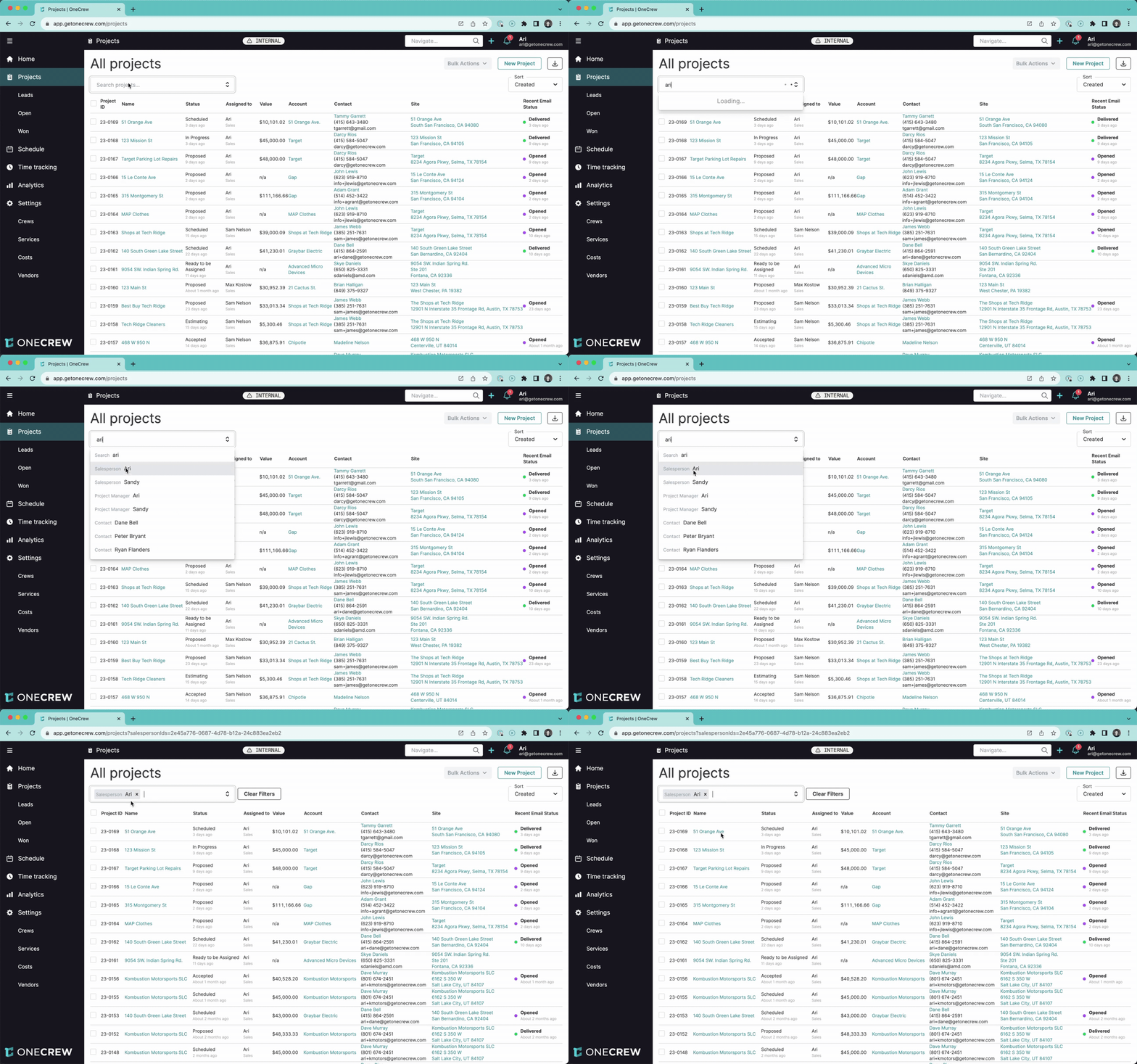
Configuring filters in OneCrew is designed to be intuitive. You can apply filters from the search bar located at the top of the All projects list and within the Analytics section.
Applying Filters
Access the Filter Bar: Click into the Search projects... (or Select filters in Analytics) bar.
Type to Search or Select:
Keyword Search: Simply type a word, part of a word, or a Project ID. The system will search across relevant fields like Project Name and Project ID. For instance, typing "Mission" will show projects like "123 Mission St".
Specific Category Filters: As you type, a dropdown list will appear, suggesting filter categories and their values. For example, typing "Ari" might suggest "Salesperson: Ari" or "Project Manager: Ari".
You can also click the small filter icon or down-arrow next to the search bar to browse all available filter categories directly.
Select a Filter: Click on the desired filter from the dropdown list. The project list or analytics view will update immediately.
Available Filter Categories
You can filter by a wide range of criteria:
Status: (e.g., Lead, Estimating, Proposed, Accepted, Scheduled, In Progress, Complete, Lost)
Date: (e.g., Lead Date, Estimated Date, Bid Due Date, Proposed Date, Hold Date, Sold Date, Completed Date)
Salesperson: (e.g., Ari, Sam Nelson)
Project Manager: (e.g., Frederick Wong, Sandy)
Tag: (e.g., Asphalt, Concrete, Residential, Striping)
Account: (e.g., Target, Gap, MAP Clothes)
Contact: (e.g., Tammy Garrett, Darcy Rios)
Stacking Filters
You can apply multiple filters simultaneously to refine your results:
Different Filter Types (AND logic): When you apply filters from different categories (e.g., Salesperson: Ari AND Search: 51), the results will only include projects that match all applied criteria.
Same Filter Type (OR logic): If you apply multiple filters of the same type (e.g., Contact: Tammy Garrett AND Contact: Darcy Rios), the results will include projects that match either criterion.
Combination: You can combine these. For example, (Contact: Tammy Garrett OR Contact: Darcy Rios) AND Account: Target.
Date Filters
Date filters offer additional flexibility:
Select a date-based filter (e.g., Date Sold Date).
By default, it might show "before [today's date]".
Click on "before" to toggle between before and after.
Click on the date to open a calendar and select your desired date.
To create a date range, apply two date filters: one with "after [start_date]" and another with "before [end_date]". For example, Date Sold Date after 07/01/2023 and Date Sold Date before 09/01/2023.
Clearing Filters
To remove all active filters and return to the default view, click the Clear Filters button. Individual filters can be removed by clicking the 'x' next to their lozenge in the search bar.
Filters in Analytics
The same filtering logic applies in the Analytics section. However, date filtering for the overall dashboard (e.g., Proposed, Won, Completed sections) is handled by dedicated Start and End date pickers at the top of the Analytics page. The Select filters bar in Analytics is used for other criteria like Salesperson, Project Manager, Account, and Tags, but not for the primary date range of the displayed metrics. These metrics (Proposed, Won, Completed) use their respective date fields (proposed date, sold date, completed date) against the selected Start and End range.
Pro Tip: Use the main search bar for quick keyword searches across multiple fields (like project name or ID) before diving into specific filter categories. This can often get you to the desired project faster.
Use Cases
Filters are versatile and can be applied in numerous scenarios. Here are some common situations where this feature proves invaluable:
Quick Project Lookup:
Locate a project by typing part of its Name or its unique Project ID into the search bar.
Find all projects associated with a specific Contact or Account.
Team and Individual Performance Monitoring:
View all projects assigned to a particular Salesperson or Project Manager to assess workload or performance.
In Analytics, filter by Salesperson to see their specific contribution to proposals, won deals, and completed projects.
Status Tracking and Management:
Display all projects currently in a specific Status, such as "In Progress" or "Needs Approval," to prioritize next steps.
Identify projects that are "On Hold" or "Lost" for review.
Financial and Timeline Analysis:
Filter projects by Sold Date to analyze sales performance within a specific period (e.g., last quarter).
Identify projects with an Estimated Date, Bid Due Date, or Proposed Date falling within a certain timeframe to manage deadlines.
Categorization and Tagging:
If you use Tags (e.g., "Residential," "Commercial," "Asphalt"), filter by these tags to see all related projects.
Insight: Combining filters allows for highly specific data segmentation, uncovering trends or issues that might otherwise be hidden in a larger dataset. For example, you could identify all "Proposed" projects for a specific "Salesperson" that are associated with a key "Account."
Examples
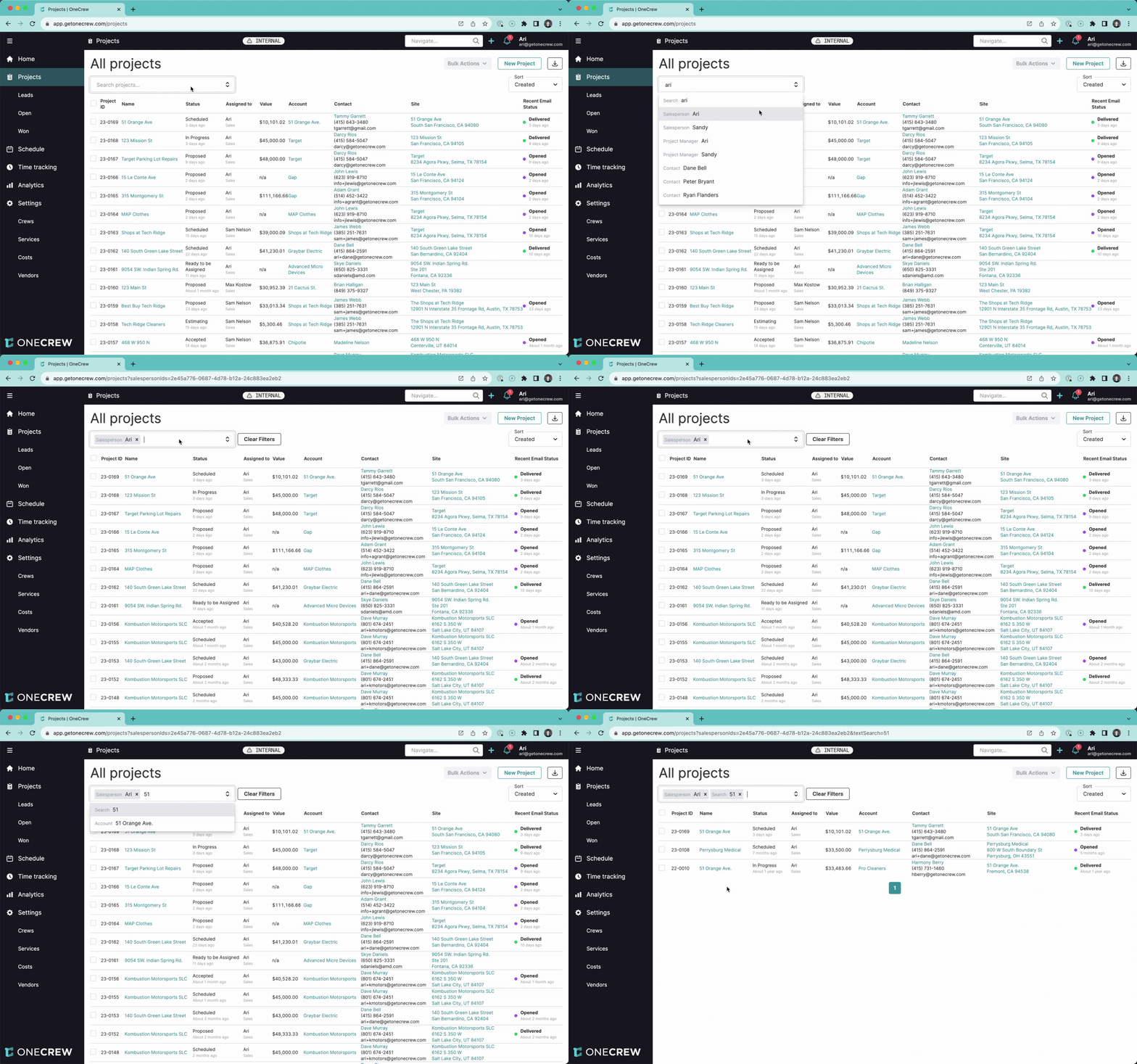
Here are some real-world examples demonstrating how filters can solve problems or add value:
Example 1: Finding a Specific Salesperson's Recent High-Value Scheduled Projects
Goal: You want to see all projects assigned to "Ari" as the Salesperson that are currently Scheduled and have "Orange Ave" in the project name or site.
Steps:
Type "Ari" in the search bar and select Salesperson: Ari.
Type "Scheduled" in the search bar and select Status: Scheduled.
Type "Orange Ave" in the search bar and select Search: Orange Ave.
Result: The list will display only projects that meet all three criteria.
Example 2: Analyzing Projects Sold in the Last Quarter for a Specific Account
Goal: You need to review all projects sold to the "Target" account in Q3 2023 (July 1st to September 30th).
Steps:
Type "Target" and select Account: Target.
Type "Sold Date" and select Date Sold Date. It will default to "before [today]".
Click "before" and change it to "after". Click the date and select July 1, 2023.
Again, type "Sold Date" and select Date Sold Date. Leave it as "before". Click the date and select September 30, 2023.
Result: The project list will show all projects for the "Target" account with a sold date between July 1st and September 30th, 2023.
Example 3: Viewing All Parking Lot Repair Projects
Goal: You want a quick overview of all projects tagged as "Parking Lot Repairs" (assuming you use such a tag).
Steps:
Type "Parking Lot Repairs" in the search bar.
Select Tag: Parking Lot Repairs from the suggestions.
Result: A list of all projects with that specific tag.
Example 4: Checking Projects Associated with Two Key Contacts
Goal: You want to see all projects related to either "Tammy Garrett" or "Darcy Rios".
Steps:
Type "Tammy Garrett" and select Contact: Tammy Garrett.
Type "Darcy Rios" and select Contact: Darcy Rios.
Result: The list shows projects associated with Tammy Garrett OR Darcy Rios. If you then added Account: Target, it would show projects for (Tammy OR Darcy) AND Account: Target.
Example 5: Filtering Analytics for a Specific Sales Team Member
Goal: View the Analytics dashboard to see performance metrics (Proposed, Won, Completed) specifically for "Salesperson: Ari" within the current year-to-date.
Steps:
Navigate to the Analytics section.
Set the main Start date to January 1st of the current year and the End date to today.
In the Select filters bar, type "Ari" and select Salesperson: Ari.
Result: The dashboard widgets (Proposed, Won, Completed, charts) will update to reflect data only for projects where Ari is the salesperson, within the specified date range.
Pro Tip: Remember that when stacking filters of the same type (e.g., two contacts), it broadens your results (OR logic), while stacking different types (e.g., contact and account) narrows them (AND logic). This is key to building precise queries.