Copying Services Across Estimates or Projects
Last updated: August 7, 2025
Watch a Video Demo Here
Overview
Streamline your estimating process by easily duplicating services between different projects or to various estimates within the same project. This feature is perfect for reusing common service details (like materials, labor, and equipment), creating estimate variations quickly, or setting up new projects based on previous work, saving you valuable time and ensuring consistency in your proposals.
Step-by-Step Instructions
Copying Services to a Different Project
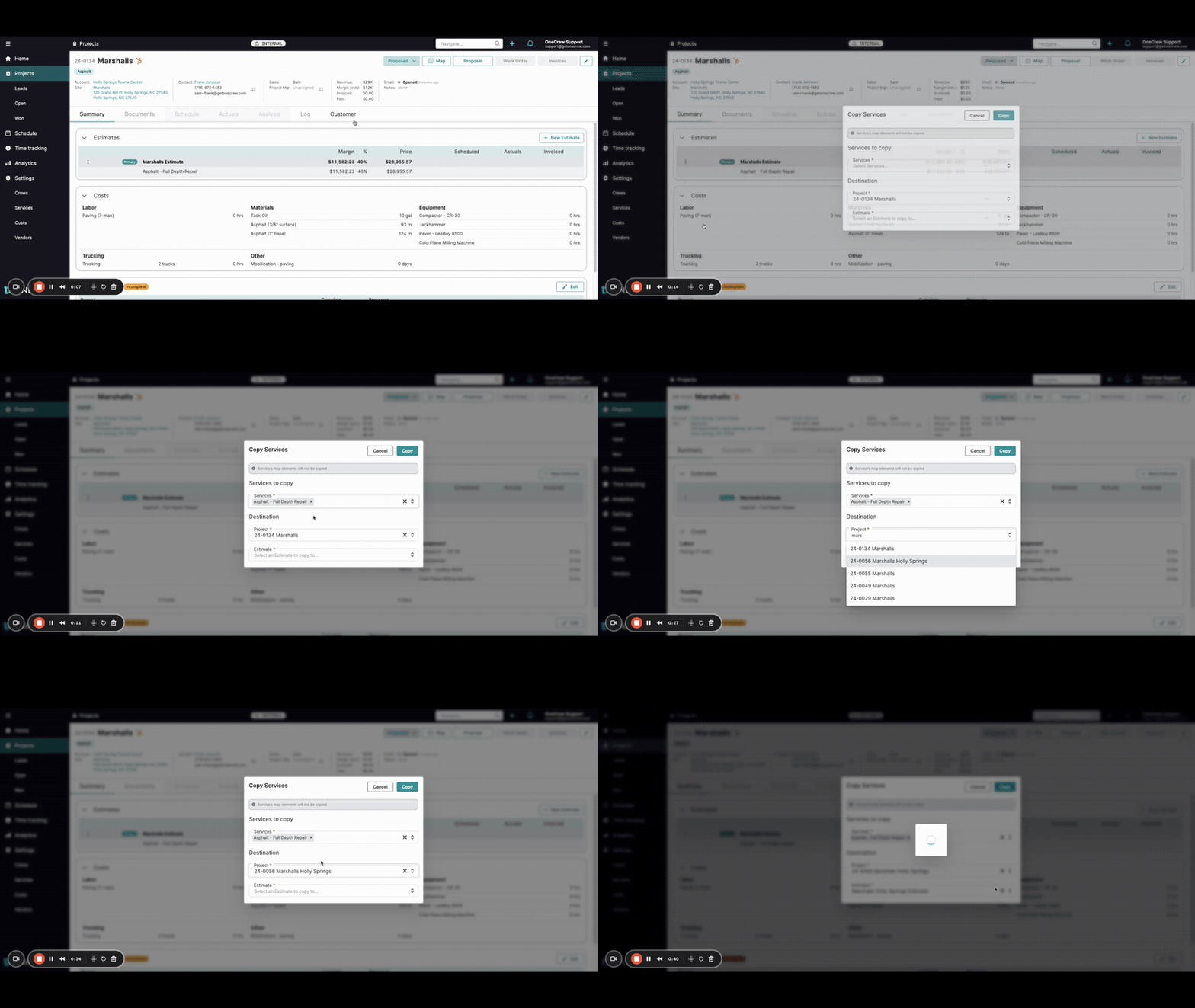
Follow these steps to copy services from an estimate in one project to an estimate in a completely different project.
Navigate to the project containing the estimate with the services you wish to copy. Ensure you are on the Summary tab.
In the Estimates section, locate the specific estimate. Click the three-dot menu (⋮) to its left.
Select Copy services from the dropdown menu. A Copy Services dialog will appear.
In the Copy Services window: a. Under Services to copy, click into the field and select the service(s) you want to duplicate (e.g., "Asphalt - Full Depth Repair"). You can select multiple services if needed. b. Under Destination, click the Project field. Search for and select the target project where you want the services to be copied. c. Once the project is selected, click the Estimate field and choose the specific estimate within that destination project that will receive the copied services.
Click the Copy button. A success message "Services copied successfully" will appear, and the services will now be present in the destination estimate of the other project.
Insight: This is a huge time-saver when bidding on similar jobs for different clients or locations, allowing you to leverage existing service structures instantly without manual re-entry.
Copying Services to an Estimate within the Same Project
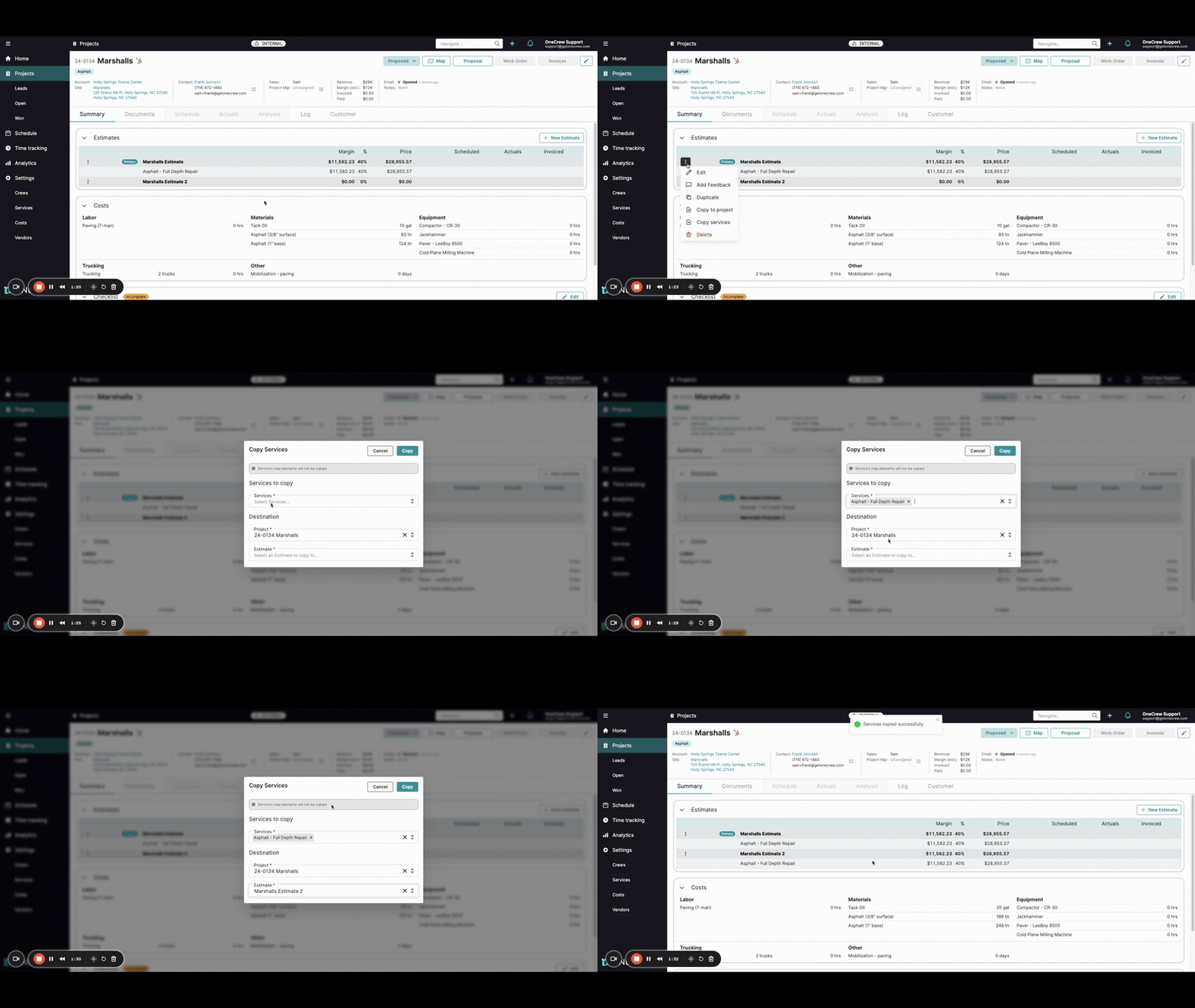
Use this method to create revised bids while preserving the original, or to quickly populate a new version of an estimate within the same project.
If you're copying services to a brand new estimate (e.g., for a revised option), it's best to create that new estimate first: a. While in your project's Summary tab, click the + New Estimate button. b. Enter a descriptive Name for your new estimate (e.g., "Estimate - Revised Option") and click Save. c. You'll be taken to the new, empty estimate. Navigate back to the project's Summary tab to proceed.
Now, locate the original estimate that contains the services you wish to copy. Click the three-dot menu (⋮) to its left.
Select Copy services.
In the Copy Services window: a. Under Services to copy, select the desired service(s). b. Under Destination, the Project field will correctly default to your current project. Leave this as is. c. Click the Estimate field and select your newly created estimate (e.g., "Estimate - Revised Option") or another existing estimate within the current project.
Click Copy. The selected services will be added to the chosen estimate, maintaining your original estimate untouched.
Pro Tip: When managing multiple estimate versions for a client, use distinct and clear names for each new estimate (e.g., "Phase 1 - Original", "Phase 1 - Option B") before copying services. This helps maintain clarity and organization within your project.
Troubleshooting
Here are a few common points to keep in mind when copying services:
Map Elements Not Copied:
A message "Service's map elements will not be copied" appears at the top of the Copy Services dialog. Be aware that any visual map elements or measurements drawn on a map associated with a service are not included in the copy. You'll need to recreate these in the new location if they are essential.
Destination Not Found: If you can't find your intended project or estimate in the dropdowns, double-check that they exist and you have the correct naming.
Incorrect Copy Destination: If you accidentally copy services to the wrong estimate or project, you will need to manually delete them from the incorrect location and then repeat the copy process, carefully selecting the correct destination.
Pro Tip: Always double-check your selections in the Services to copy and Destination sections of the Copy Services window before clicking the final Copy button. This simple check can prevent rework.