Project List Map View
Last updated: August 7, 2025
Watch Video Demo Here
Overview
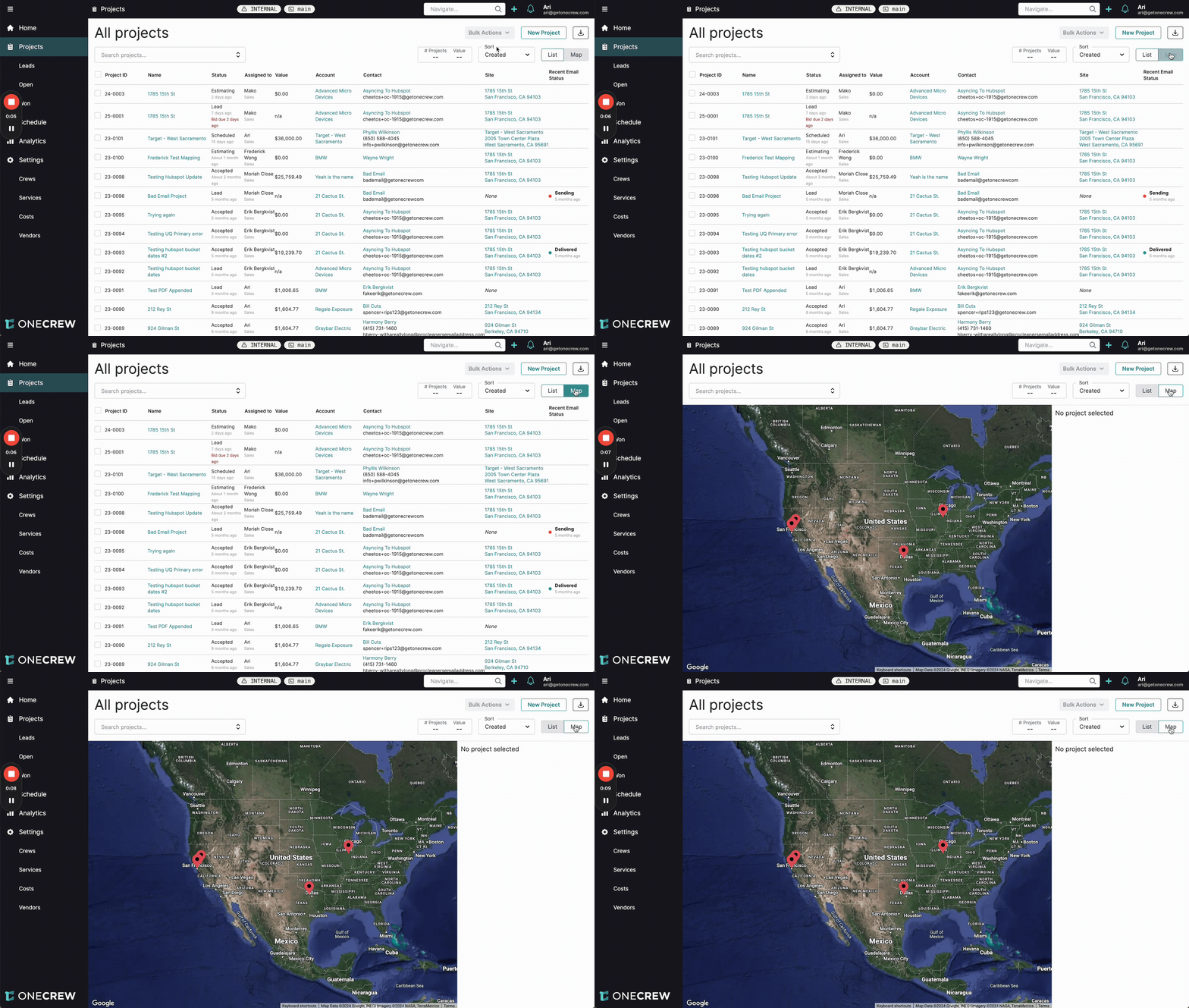
Get a geographical perspective of your ongoing work with the Projects Map View. This feature allows you to see all your projects plotted on an interactive map, making it easier to understand their distribution, access key details quickly, and manage regional assignments. Whether you're overseeing projects across the country or in a specific local area, Map View provides valuable spatial context.
Step-by-Step Instructions
1. Accessing Map View
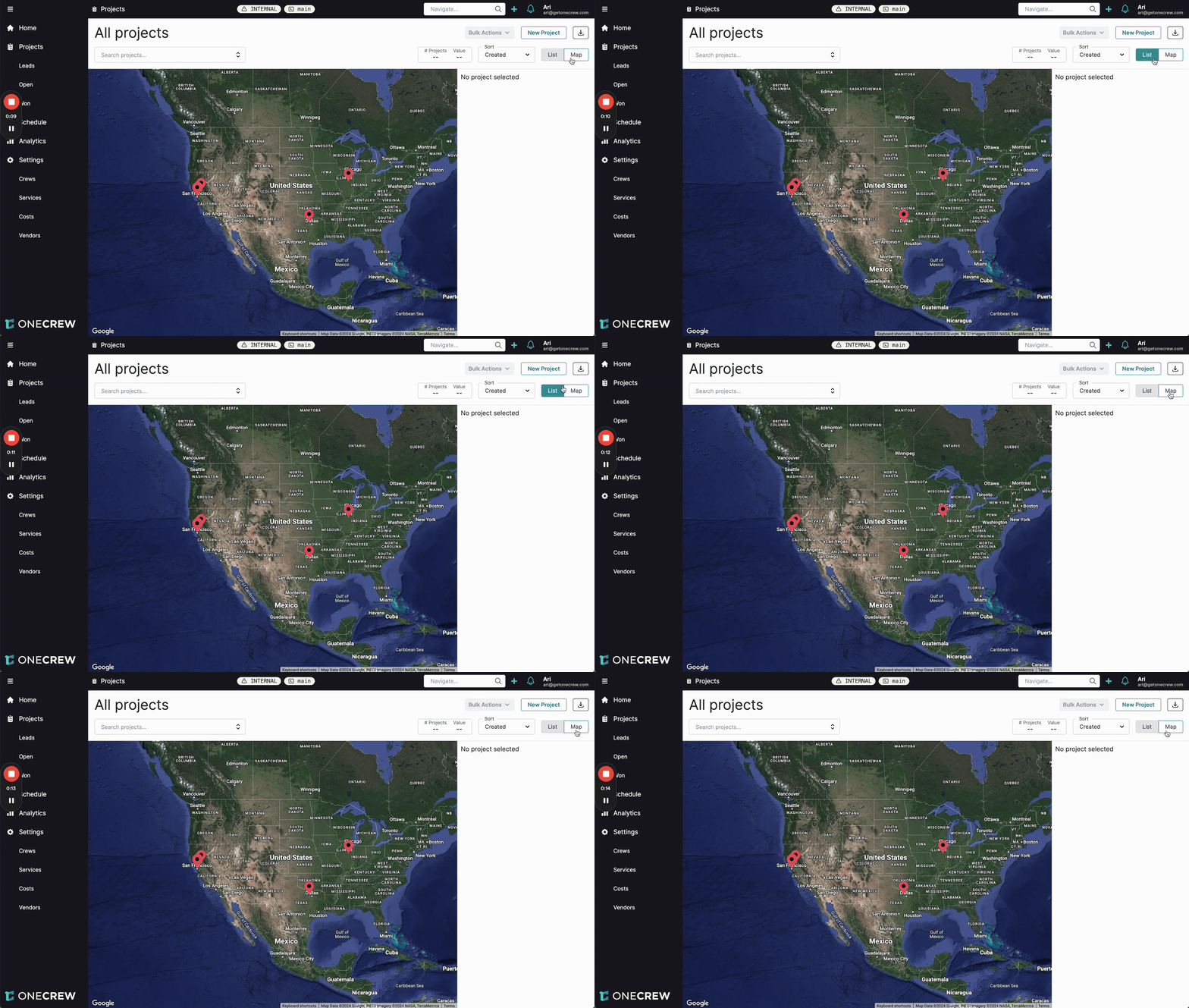
To switch from the standard list of projects to a geographical representation:
Navigate to the Projects section from the main menu. By default, you'll see the All projects list.
In the top right corner of the projects area, locate the view toggle buttons.
Click on the Map button. The view will change from a list to an interactive map displaying your projects as pins.
2. Navigating the Map
The map automatically adjusts its zoom level to encompass all your project locations.
If your projects are spread across a large area (e.g., nationwide), the map will show a broader view, like the entire country.
If your projects are concentrated in a smaller region, the map will automatically zoom in to that specific area for a more detailed perspective.
You can manually zoom in or out and pan across the map using standard map controls (e.g., mouse wheel, click and drag) to explore different areas.
Insight: The automatic zoom feature ensures you always get the optimal overview of your project landscape, whether you have a few local jobs or many spread across vast distances.
3. Viewing Project Details
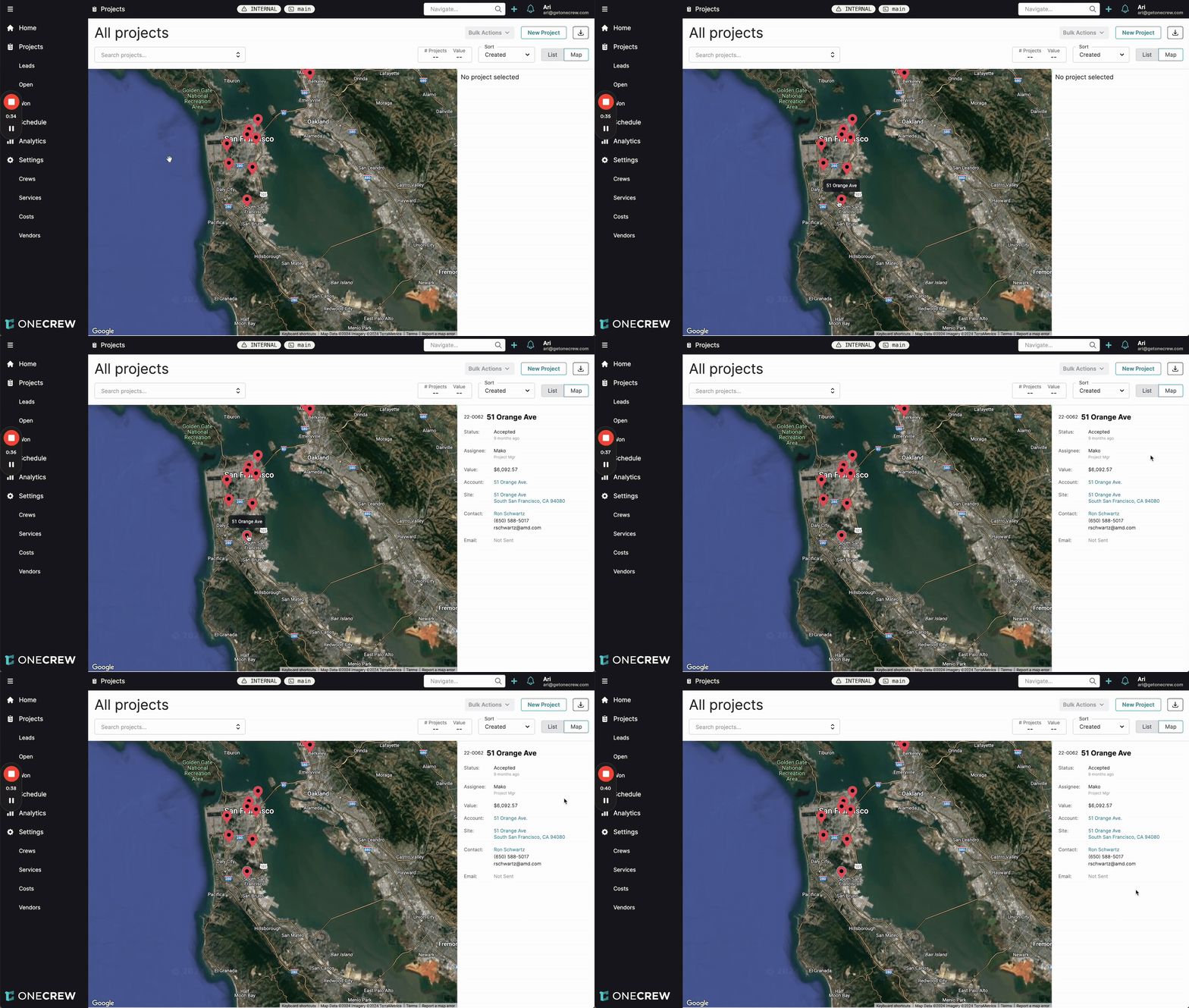
Quickly access information for any project directly from the map:
Hover your cursor over a project pin on the map. A small pop-up will appear displaying the project's name or address.
Click on a project pin. A sidebar will open on the right side of the screen, displaying key project information such as:
Project ID and Name
Status
Assignee
Value
Site (Address)
Contact details
Email status
4. Filtering Projects in Map View
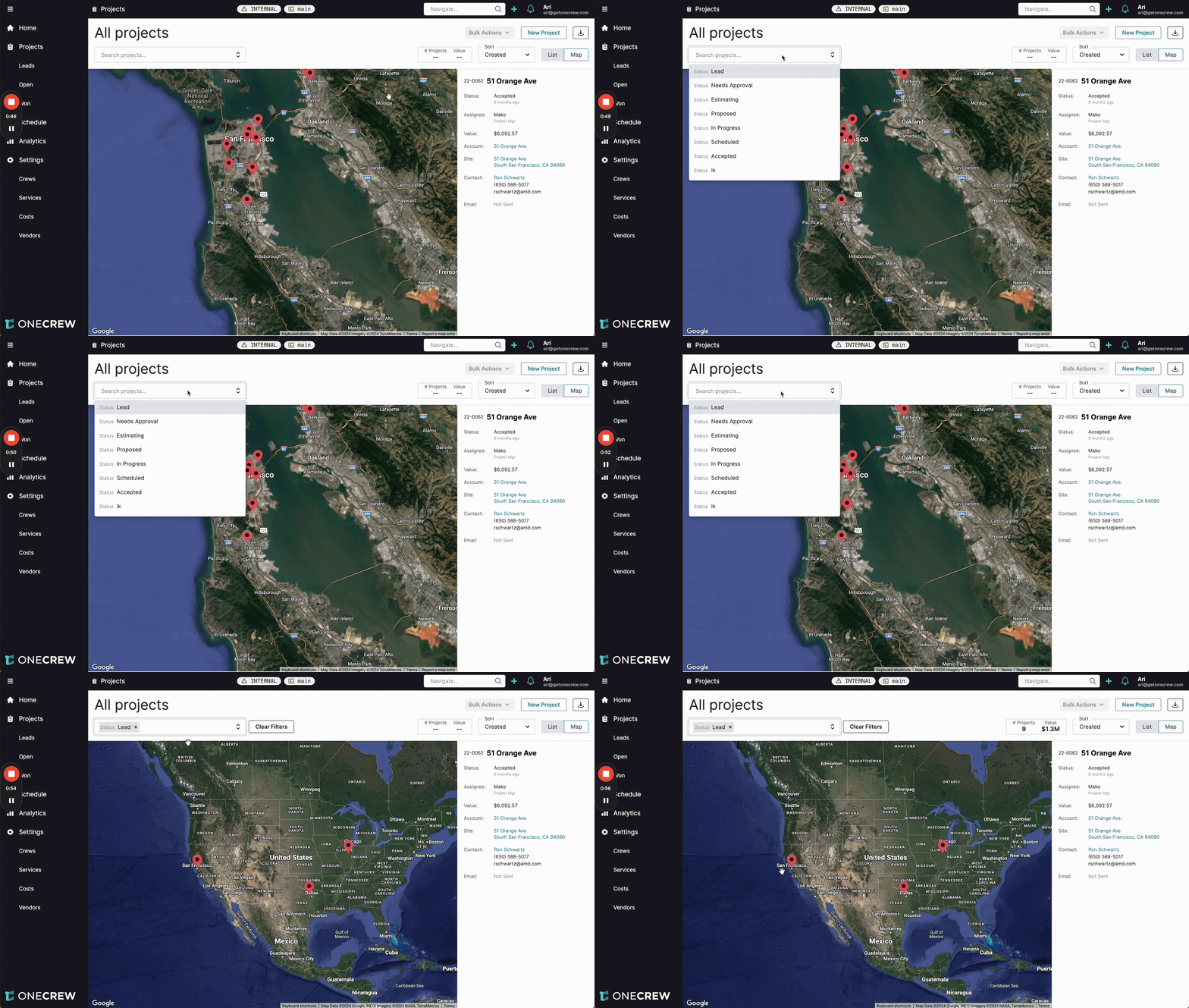
Just like in the list view, you can filter the projects displayed on the map:
Locate the Search projects... bar, typically found above the map.
Click into the search bar. A dropdown menu will appear with various filtering options, such as Status.
Select your desired filter criteria (e.g., Status: Lead).
The map will update automatically, displaying only the projects that match your selected filters. The map will also re-zoom to best fit the filtered set of projects.
Pro tip: Combine multiple filters to narrow down your view to very specific sets of projects, such as "Accepted" projects in a particular city.
Troubleshooting
No projects visible on the map:
Ensure your projects have valid address information entered. Projects without addresses cannot be plotted.
Check if any filters are applied. If your filters are too restrictive (e.g., a specific status that no projects currently have), no pins will appear. Try clearing filters by clicking Clear Filters to see all projects.
Project pins in unexpected locations:
Verify the accuracy of the address data entered for the specific project. The pin location is based directly on this information. You may need to edit the project details to correct the address.