Overriding Map Measurements
Last updated: August 7, 2025
Watch Video Demo Here
Overview
Sometimes, the automatically calculated measurements from your project map might need slight adjustments for your estimates. This tutorial will guide you through the process of overriding a map-derived measurement within an estimate, allowing for greater flexibility and precision in your project costing. This is particularly useful when you have specific on-site knowledge or customer agreements that necessitate a value different from the purely geometric measurement.
Insight: Overriding map measurements provides the flexibility to align estimates with real-world conditions or specific project requirements without altering the original geospatial data, ensuring both accuracy in quoting and integrity of your mapped information.
Step-by-Step Guide
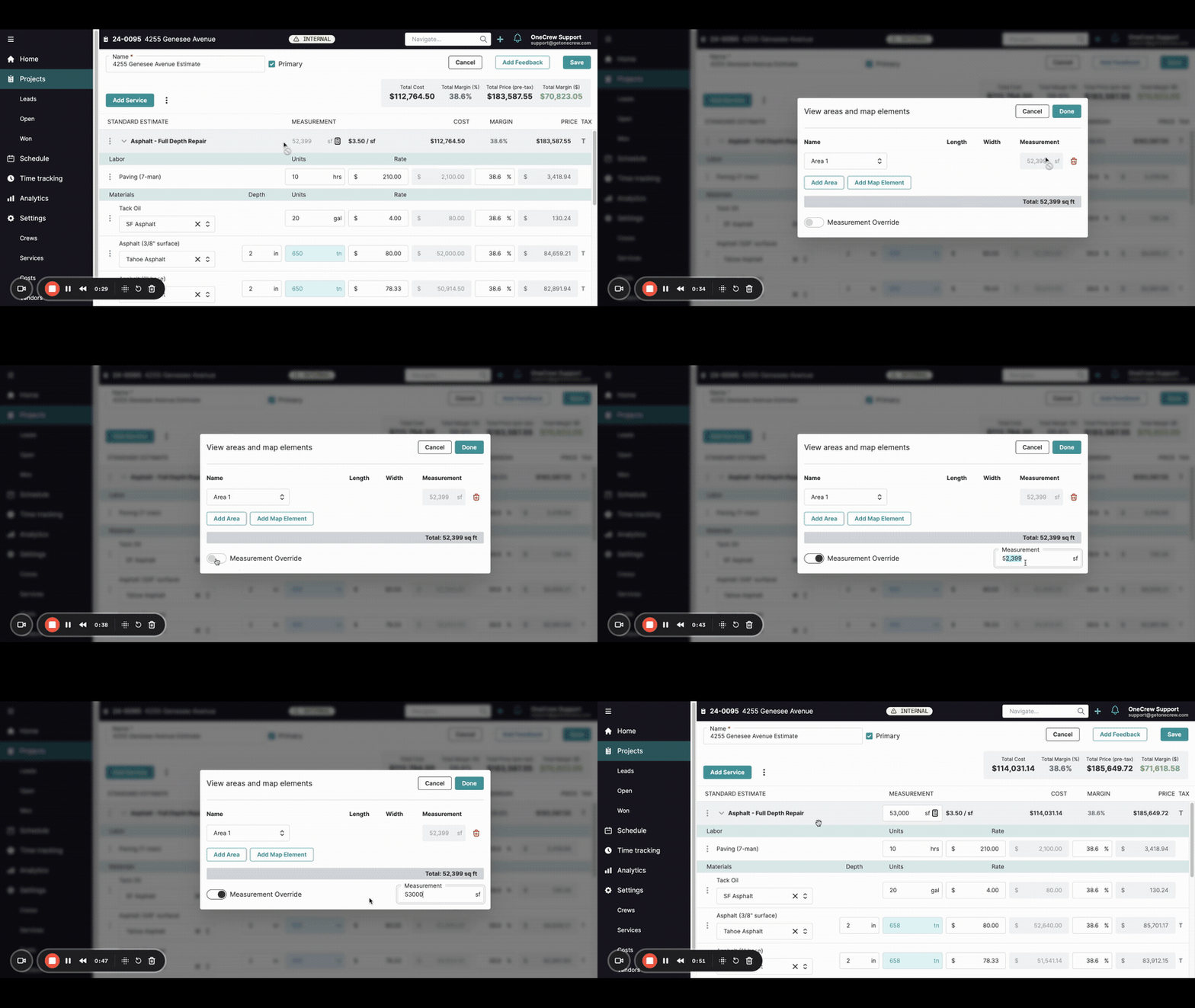
Follow these steps to manually adjust a map measurement in your project estimate:
Navigate to the Project Estimate: Open the project you're working on. From the project's Summary tab, locate the estimate you wish to modify. Click on the estimate to open its detailed view. You'll see line items, including services that use map-based measurements.
Identify the Locked Measurement: Locate the service line item whose measurement you want to override. You will notice that the Measurement field (e.g., square footage) derived from the map is initially locked and cannot be directly edited. This is indicated by the value being displayed without an editable input field.
Access the Measurement Override Options: To the right of the locked measurement value for the service, click on the calculator icon. This will open a "View areas and map elements" pop-up window.
Enable Measurement Override: In the pop-up window, you'll see the current map element (e.g., "Area 1") and its measurement. At the bottom of this window, locate the Measurement Override toggle switch. Click this toggle to enable it.
Modify the Measurement: Once Measurement Override is enabled, the Total measurement field at the bottom right of the pop-up becomes editable. Click into this field and enter your desired new measurement value (e.g., changing 52,399 sq ft to 53,000 sq ft).
Confirm and Apply Changes: After entering the new value, click the Done button in the pop-up window. You will be returned to the estimate details screen. The Measurement field for the service line item will now display your overridden value. Notice that this field might now also be directly editable on the estimate page.
Save the Estimate: To permanently save your changes, click the Save button, usually located in the top right corner of the estimate page.
Pro tip: Remember that overriding a measurement here only affects this specific estimate. The original map data in the Map tab of your project remains unchanged, preserving your initial take-off.
Troubleshooting
Calculator icon is not visible: Ensure the service line item is indeed linked to a map measurement. If no map element was assigned, the override option won't be available. You may need to go to the Map tab and assign an area to the service first.
Measurement Override toggle is greyed out: This scenario is uncommon, but if it occurs, double-check that the map element is correctly configured and saved. Try refreshing the page or re-linking the map element.
Changes don't reflect on the estimate after editing: Make sure you click Done in the "View areas and map elements" pop-up after changing the value, and then click the main Save button on the estimate page itself. Both actions are necessary.
Map still shows the old measurement: This is expected behavior. The override feature is designed to change the measurement value used in the estimate without altering the actual dimensions drawn on the map. If you need to change the map itself, you should edit it directly in the Map tab.