Configuring Sales Calendar
Last updated: August 7, 2025
Watch Video Demo Here
Overview
The Sales Calendar is a powerful tool designed to streamline the scheduling and management of sales-related activities. Its primary purpose is to provide a dedicated calendar for salespeople to organize site visits, client meetings, and other pre-acceptance project tasks. Unlike the main schedule, which focuses on assigning work to crews for accepted projects, the Sales Calendar is tailored for the pre-sales workflow.
Key benefits include:
Enhanced Organization: Centralizes all sales appointments and site visits.
Improved Visibility: Offers a clear view of salesperson availability and scheduled tasks.
Efficient Workflow: Simplifies the process of assigning and tracking pre-sales project activities.
Seamless Integration: Works in conjunction with project management, allowing easy access to project details directly from calendar events.
Mobile Accessibility: Enables salespeople to view their schedules and project information on the go.
Configuration
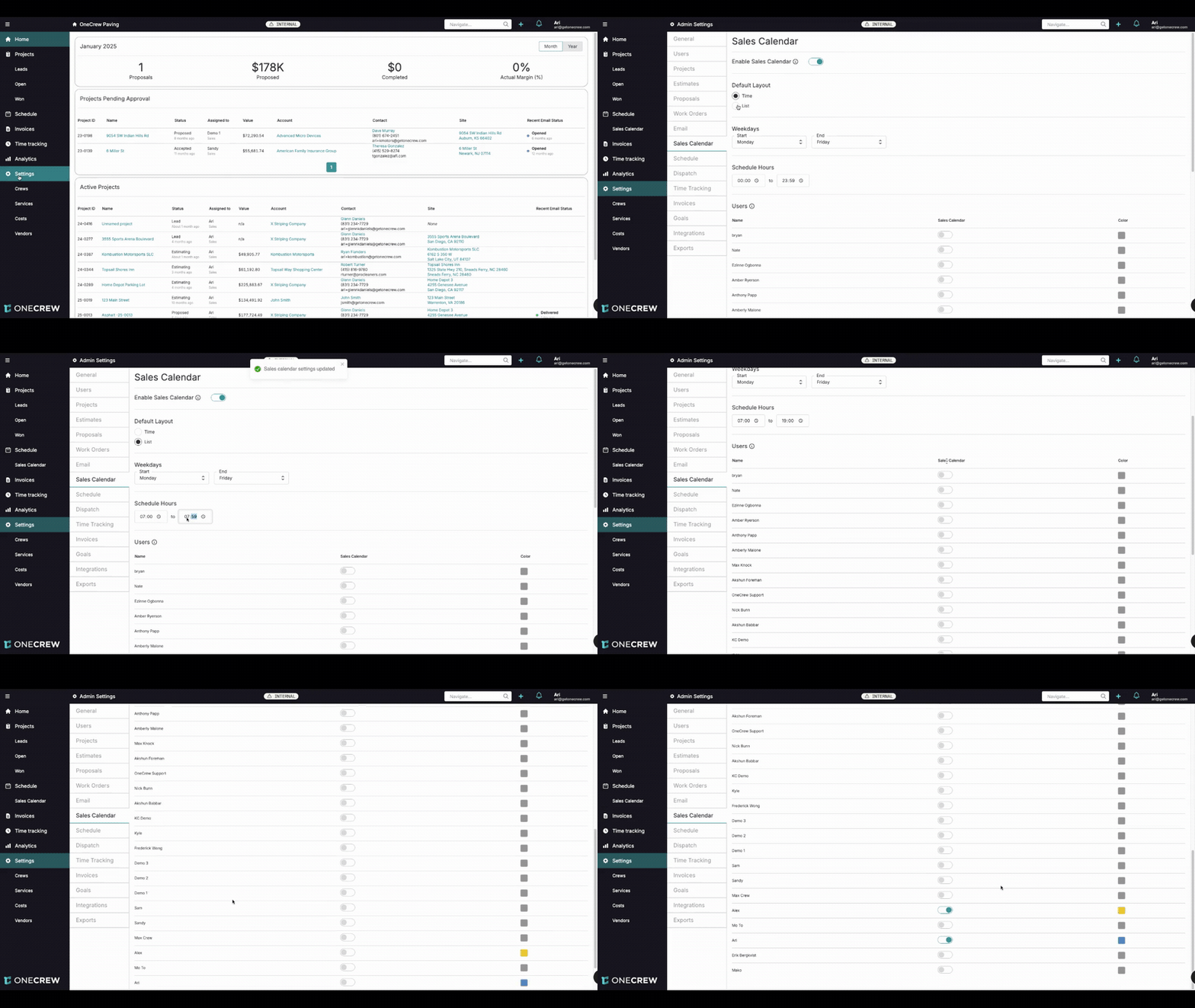
Setting up the Sales Calendar is straightforward. Follow these steps to enable and customize it for your team:
Navigate to Settings from the main menu.
In the Admin Settings, select Sales Calendar.
Toggle the Enable Sales Calendar switch to the "on" position. A confirmation message "Sales calendar settings updated" will briefly appear.
Once enabled, several configuration options become available:
Default Layout
Time: Displays the calendar in a time-grid format, similar to most calendar applications.
List: Shows appointments in a list view for the selected day or week. (In the demonstration, List was selected as the default layout.)
Weekdays
Define the Start and End days of your typical work week (e.g., Monday to Friday).
Schedule Hours
Set the default Start and End times for the daily schedule view (e.g., 07:00 to 18:00). This defines the visible hours on the calendar.
Users
This section lists all full users in your system. To include a salesperson on the Sales Calendar:
Scroll through the list of users.
Locate the salesperson you want to add.
Toggle the switch next to their name under the Sales Calendar column. A "Successfully updated user" message will confirm the change.
Optionally, assign a unique Color to each salesperson by clicking the color swatch next to their name. This helps differentiate their appointments on the calendar view.
Pro Tip: Only enable users who are actively involved in sales activities like site visits or client meetings. This keeps the Sales Calendar focused and uncluttered.
After enabling the Sales Calendar, a new Sales Calendar tab will appear in the main navigation menu, typically under Schedule.
Use Cases
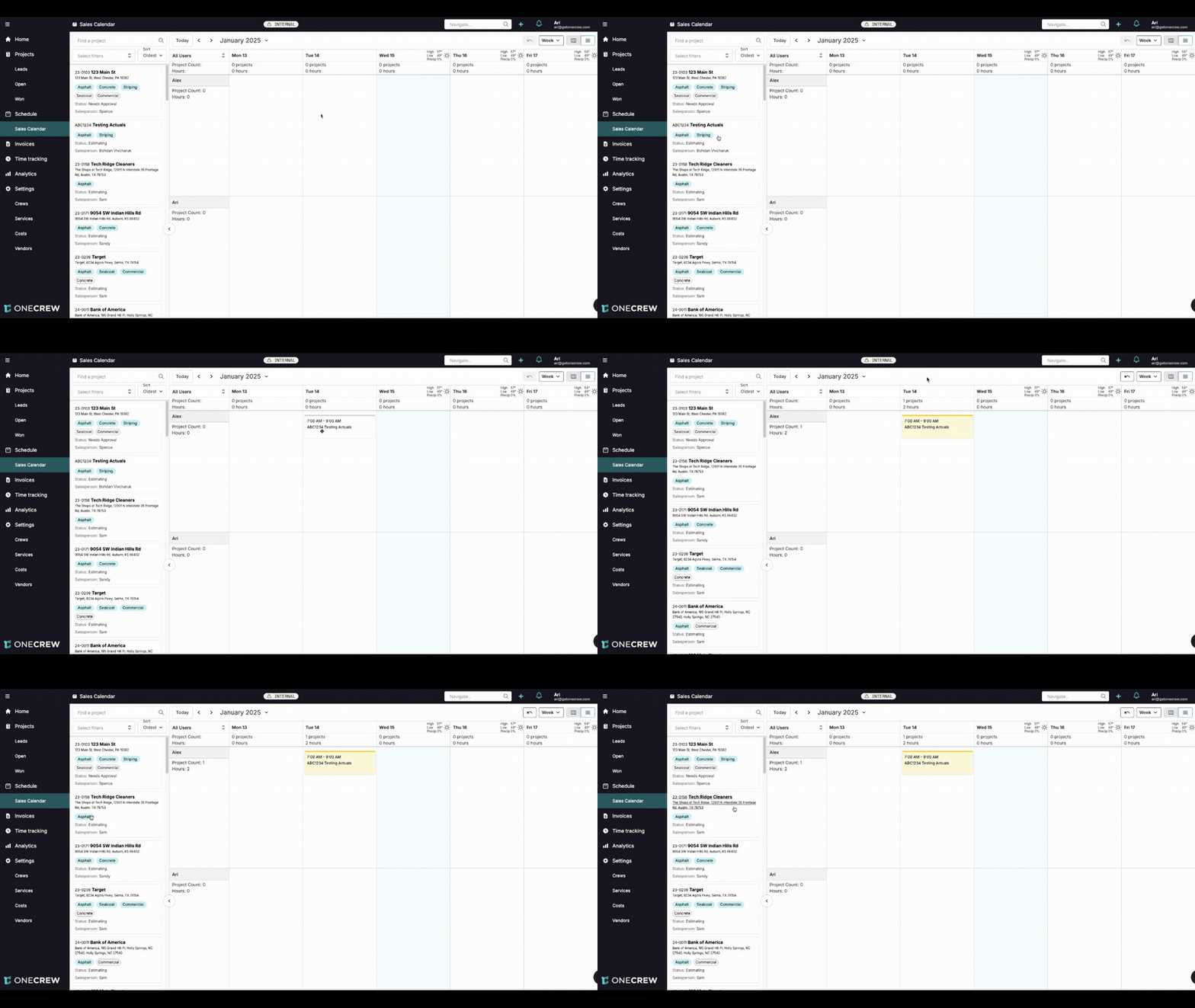
The Sales Calendar is invaluable in various scenarios throughout the sales process:
Scheduling Initial Site Visits: When a new lead comes in, quickly assign a salesperson to visit the site for an initial assessment by dragging the project from the queue to their calendar.
Managing Client Meetings: Keep track of all appointments with potential or existing clients to discuss project scope, proposals, or estimates.
Coordinating Estimating Tasks: If a project requires a salesperson to perform an on-site estimate, their availability and the task can be managed through the Sales Calendar.
Tracking Pre-Acceptance Activities: Monitor all engagements related to projects that are still in the Lead or Estimating stage, ensuring no opportunity is missed.
Optimizing Sales Team Schedules: Gain an overview of what each salesperson has planned, helping to distribute workload effectively and avoid scheduling conflicts.
Insight: The Sales Calendar bridges the gap between lead generation and project acceptance, ensuring that your sales team has a dedicated tool to manage their specific scheduling needs without cluttering the production schedule.
Examples
The Sales Calendar functions similarly to the main Schedule but is specifically for sales activities and personnel.
Basic Scheduling
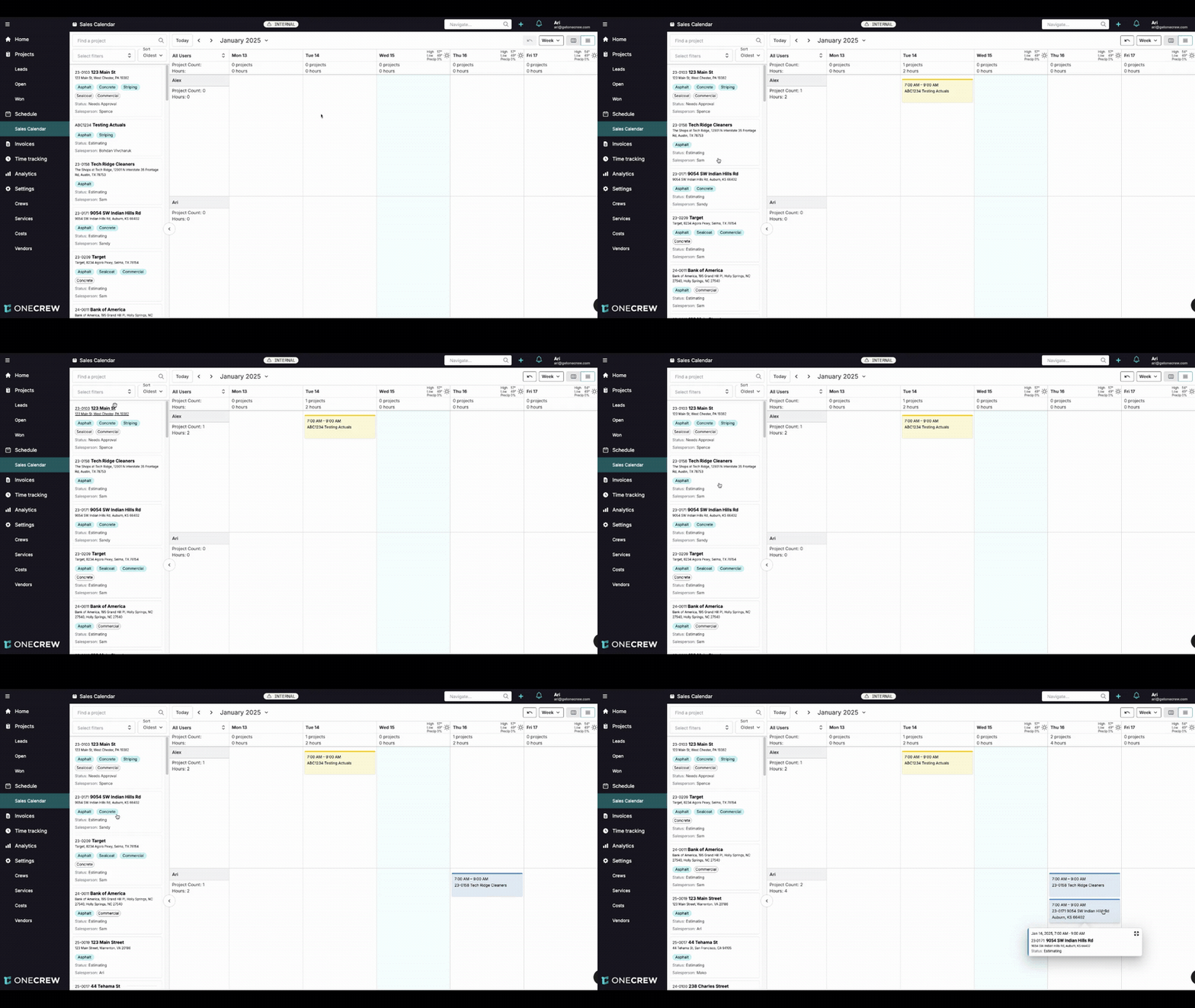
Accessing the Sales Calendar: Click on the Sales Calendar tab in the left-hand navigation panel.
The Queue: On the left side of the calendar, you'll find a queue of projects. This queue typically displays projects that are in pre-acceptance stages, such as Lead or Estimating. Projects that have not yet been accepted will appear here.
Scheduling an Event:
Identify a project in the queue that needs a sales activity scheduled (e.g., "ABC1234 Testing Actuals").
Drag this project from the queue and drop it onto the desired salesperson's column (e.g., "Alex") on the appropriate day and approximate time. The event will appear on the calendar, and the project will be removed from the queue.
For instance, to schedule "Tech Ridge Cleaners" for "Art" on Thursday morning, drag it from the queue to Art's column on Thursday.
Adjusting Event Times:
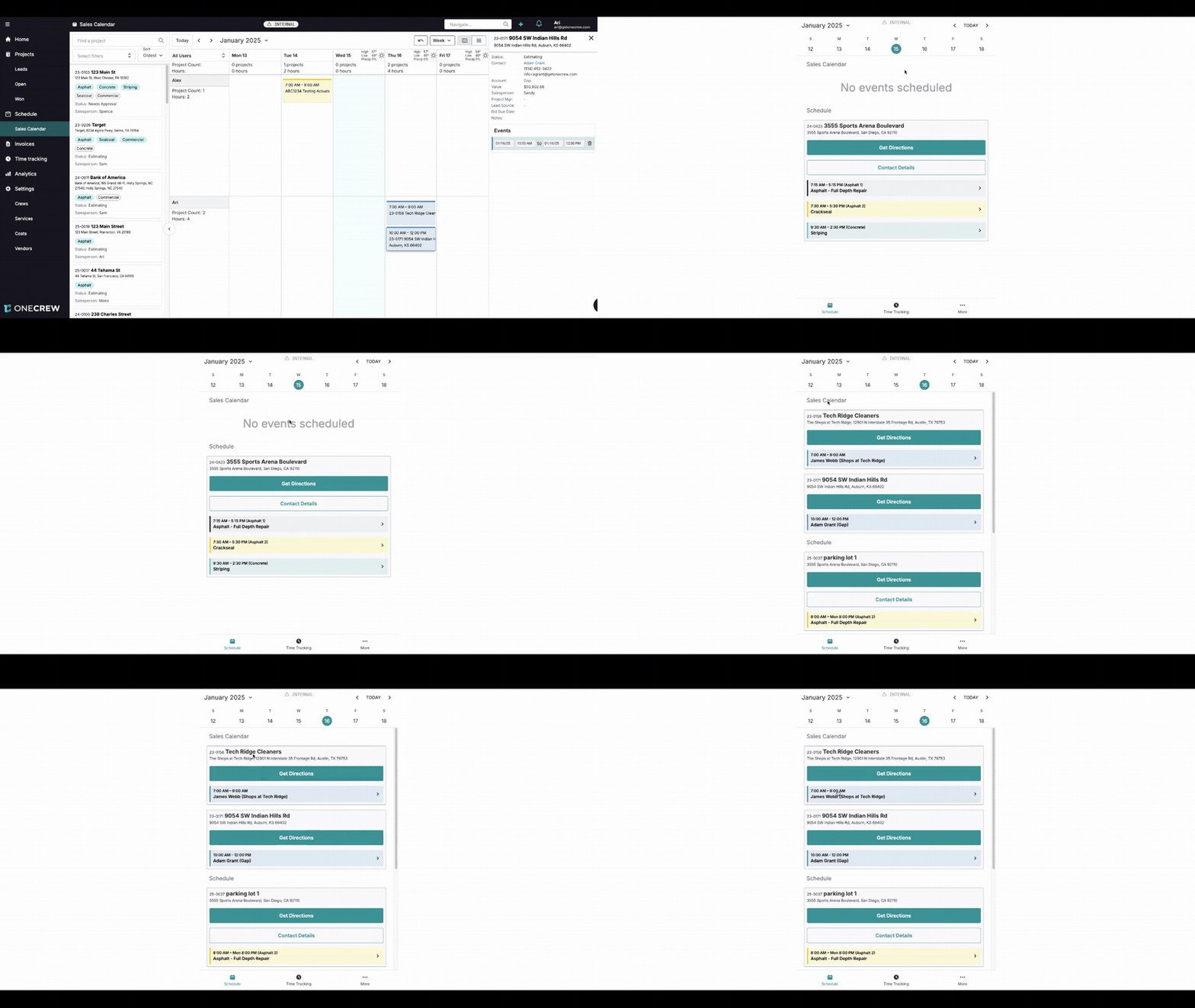
Once an event is on the calendar, click on it. An information panel will appear on the right-hand side.
In this panel, under Events, you can adjust the Start Time and End Time for the appointment. For example, change an event from 7:00 AM - 9:00 AM to 10:00 AM - 12:00 PM.
Viewing Event Details:
Hovering over a calendar event will show a quick summary.
Clicking on an event displays detailed project information in the right-hand panel, including Account, Contact, Value, Salesperson, Status, and any Notes.
2. Mobile Usage
The Sales Calendar is also accessible on mobile devices, providing salespeople with crucial information while in the field.
Accessing on Mobile: Salespeople can log in and navigate to their Sales Calendar.
Daily View: The mobile view typically displays a daily agenda. Tapping on a specific day (e.g., January 16th) will show all scheduled sales events for that day.
Event Details: Tapping on a specific event (e.g., "Tech Ridge Cleaners" scheduled from 7:00 AM - 9:00 AM) opens a detailed view.
Details Tab: Shows project information like Account, Contact details, Salesperson, Value, Status, and Notes.
Log Tab: Provides access to the project log, where salespeople can view past communications or updates and add new ones, including uploading photos directly from their device.
The Get Directions button can be used to navigate to the site.
Insight: The mobile accessibility of the Sales Calendar empowers salespeople to manage their schedules, access vital project information, and even update project logs or create estimates directly from the field, improving efficiency and responsiveness. For instance, a salesperson can complete a site visit for "9054 SW Indian Hills Rd," take site photos, upload them to the project log, and potentially build and send a proposal to the client, Adam Grant, all before leaving the location.
By leveraging the Sales Calendar, sales teams can significantly improve their organization, ensuring that all pre-sales activities are meticulously planned and executed, ultimately leading to a more efficient sales pipeline. For more information on managing project stages, see [add link to relevant article on project statuses].