Creating Crew Tear Sheets
Last updated: August 7, 2025
Watch Video Demo Here
Overview
Efficiently managing your field crews requires clear communication of daily tasks, necessary materials, and equipment. This tutorial will guide you through generating a detailed Crew Tear Sheet for a specific day's schedule. This document provides your crew with all the essential information for their assigned jobs, including project details, service times, site addresses, and a breakdown of required resources, ensuring they are well-prepared and informed.
Step-by-Step Guide
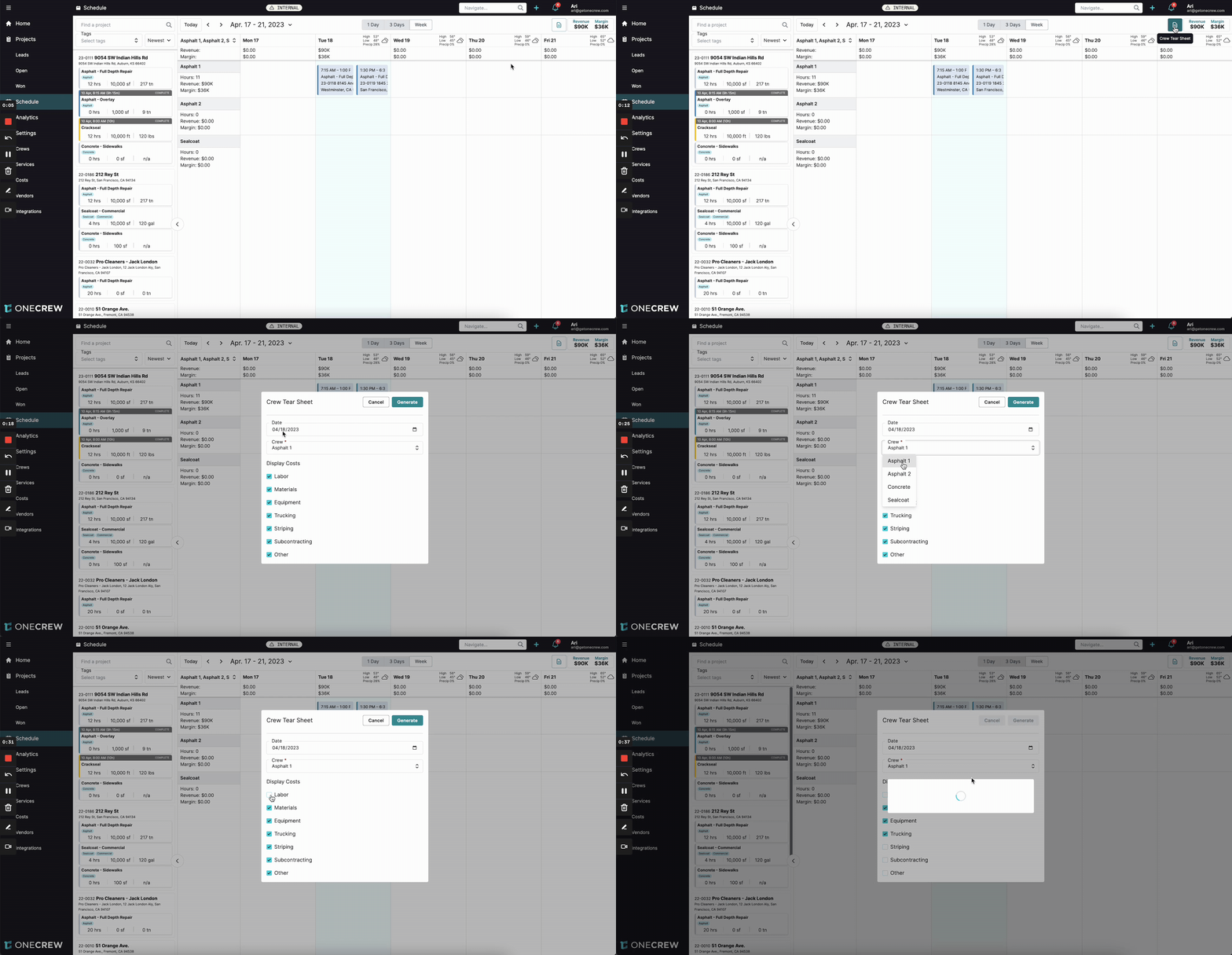
Follow these steps to create and customize a tear sheet for any crew on any given day:
Navigate to the Schedule view in your application. This is where all your crew assignments are displayed.
In the top right corner of the schedule, locate the Crew Tear Sheet button (it looks like a document icon) to the left of the Revenue and Margin display. Click this button.
A Crew Tear Sheet pop-up window will appear. Here, you'll configure the details for your tear sheet:
Date: Verify or select the specific date for which you want to generate the tear sheet. This defaults to the date currently visible in your schedule view.
Crew*: Click the dropdown menu and select the desired crew from the list (e.g., Asphalt 1).
Display Costs: Check the boxes next to the cost categories you want to include on the tear sheet. Options typically include Labor, Materials, Equipment, Trucking, Striping, Subcontracting, and Other. For example, you might select only Materials, Equipment, and Trucking if that's all the crew needs to see.
Once you've made your selections, click the Generate button.
Insight: The tear sheet automatically pulls project details, service information, and resource requirements directly from your estimates and scheduled jobs, ensuring accuracy and saving you manual data entry time.
A new browser tab will open, displaying the generated Crew Tear Sheet as a PDF. It will include:
Your company logo.
The selected crew's name and the specified date.
A breakdown for each scheduled job, including:
Project ID and name/address. полезн. * Service description (e.g., "Asphalt - Full Depth Repair").
Scheduled time slot.
Site address.
Sections for Work Order Notes and Description (these will populate if they exist for the service).
A list of the selected Display Costs (e.g., materials like "Tack Oil," equipment like "Paver - LeeBoy 8500," and trucking details).
You can now print this PDF or save it to share with your crew.
Troubleshooting
Incorrect Information on Tear Sheet:
Double-check that you selected the correct Date and Crew in the Crew Tear Sheet pop-up before generating.
Ensure the underlying project and estimate data is accurate, as the tear sheet pulls directly from these sources.
Missing Cost Categories:
If certain costs (e.g., Labor, Materials) are not appearing, return to step 3 and ensure the corresponding checkboxes under Display Costs are selected.
Work Order Notes or Description Not Appearing:
These fields on the tear sheet will only populate if notes or descriptions have been added to the specific service within the project. Verify this information in the project details. [add link to relevant article on managing project/service details]
Pro Tip: Before generating, carefully consider which cost categories are most relevant for your crew to avoid cluttering the tear sheet with unnecessary information.