Automatically Split Multi-Day Events
Last updated: August 7, 2025
Watch Video Demo Here
Overview
Managing projects that span multiple days can sometimes clutter your schedule view with long, continuous event blocks. This tutorial will guide you through enabling a feature that automatically splits multi-day events into individual daily segments. This is particularly useful for maintaining a clear daily schedule, accurately reflecting daily work assignments, and simplifying time adjustments for each day of a multi-day job.
Step-by-Step Guide
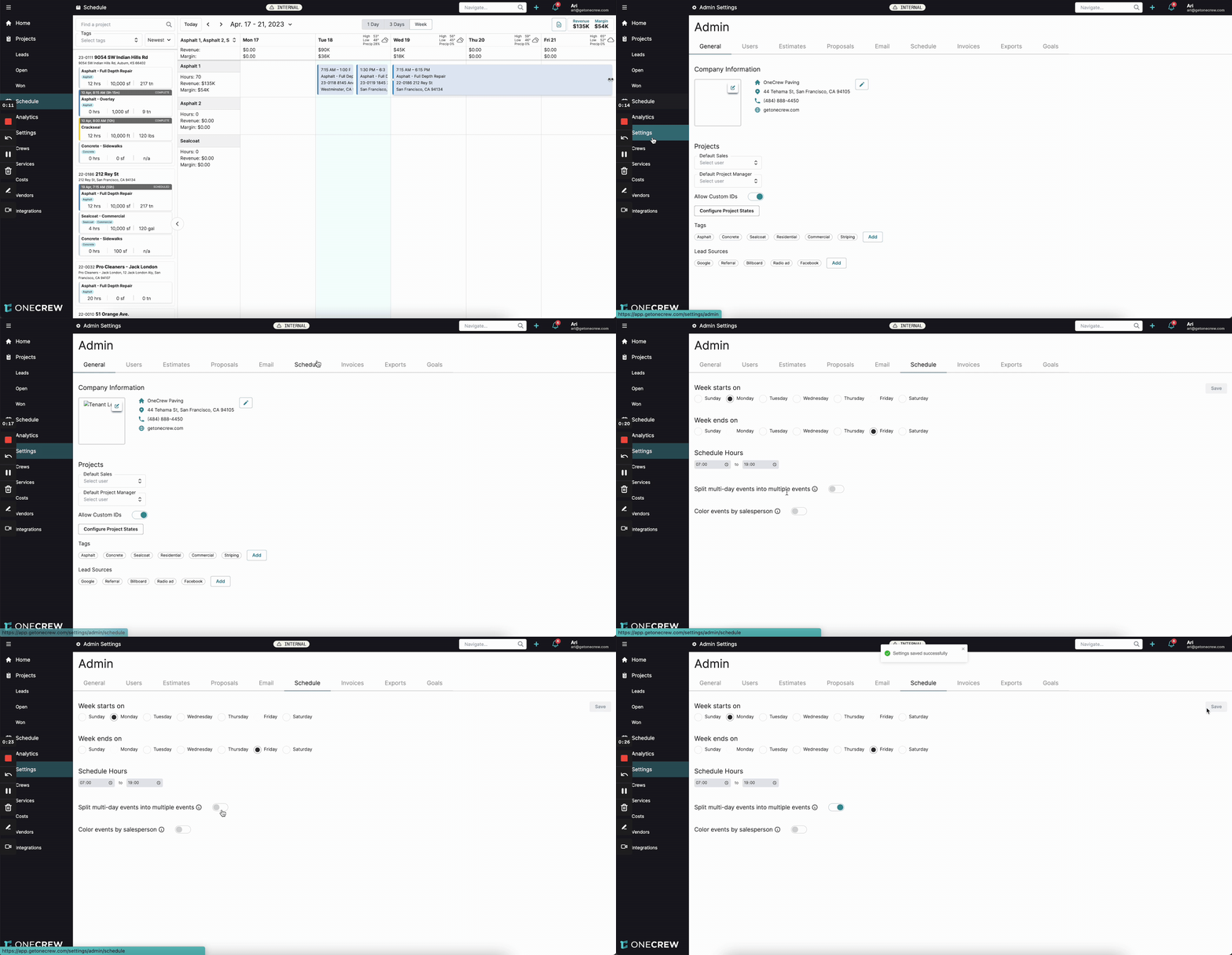
By default, when you extend an event across several days on the schedule, it appears as a single, continuous block. Enabling the split feature changes this behavior.
Navigate to Admin Settings: From the main navigation menu on the left, click on Settings. This will take you to the Admin settings page.
Access Schedule Settings: Within the Admin settings, find and click on the Schedule tab.
Enable Event Splitting: Locate the option labeled Split multi-day events into multiple events. You'll see a toggle switch next to it.
Insight: This feature helps in breaking down large tasks into manageable daily chunks, making it easier to visualize and adjust daily workloads.
Activate the Feature: Click the toggle switch to the "on" position. A tooltip explains that enabling this will create multiple events for a service stretched over multiple days, with each event starting and ending at your defined working hours.
Save Your Changes: Scroll to the bottom of the page (if necessary) and click the Save button. A confirmation message "Settings saved successfully" will appear.
With this setting enabled, when you return to your Schedule and stretch an existing single-day event across multiple days, or create a new event spanning several days, the system will automatically create separate event blocks for each day. For example, an event stretched from Wednesday to Friday will appear as three distinct events, one for Wednesday, one for Thursday, and one for Friday.
Each of these new daily events will initially be set to your company's default working hours (e.g., 7:00 AM - 7:00 PM). You can then click on any individual day's event and adjust its start or end time as needed, without affecting the other days.
Troubleshooting
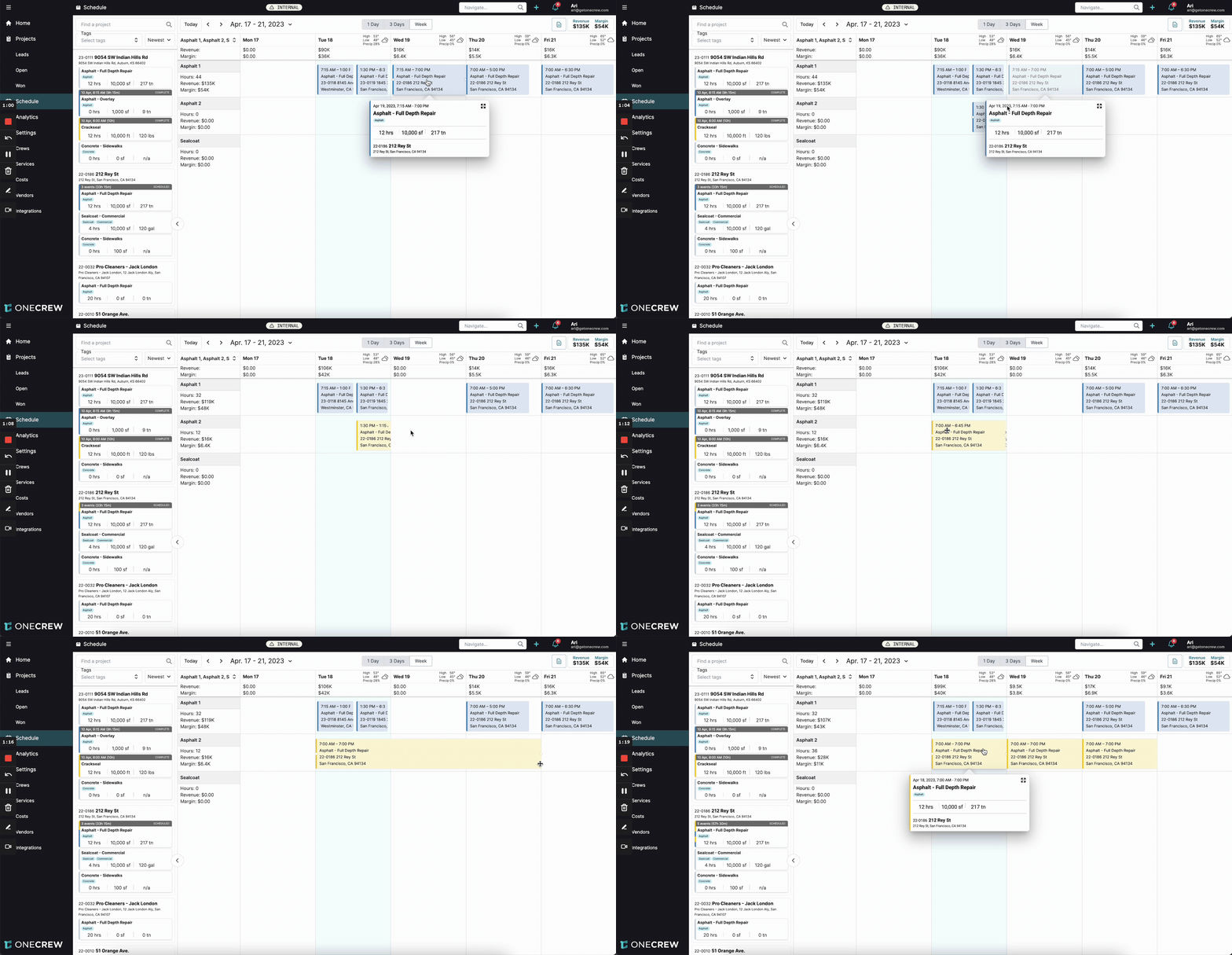
Here are a few common scenarios and how the feature behaves:
Events Not Splitting When Dragged to a New Crew/Date: If you drag an existing event to a different crew or a different start date, and in doing so, it now spans multiple days (e.g., dragging a late afternoon event to an earlier crew slot where it now crosses into the next day), it will not automatically split. The system treats this as a move, not an initial stretch.
Solution: To split such an event, you would need to first adjust its duration to a single day, then click and drag its end handle to stretch it across the desired multiple days. The split will then occur.
Adjusting Individual Split Events: Once an event is split, each day is a separate entry. Changing the duration of one day's event (e.g., making Wednesday's work end at 3:00 PM instead of 7:00 PM) will not affect the scheduled times for Thursday or Friday.
Feature Disabled: If multi-day events are not splitting, double-check that the Split multi-day events into multiple events toggle is still enabled in Settings > Schedule and that your changes were saved.
Pro Tip: If you frequently have multi-day jobs with varying daily hours, this splitting feature is invaluable. It allows for precise daily scheduling right from the initial setup.