Scheduling General Events
Last updated: September 26, 2025
Watch Video Demo Here
Overview
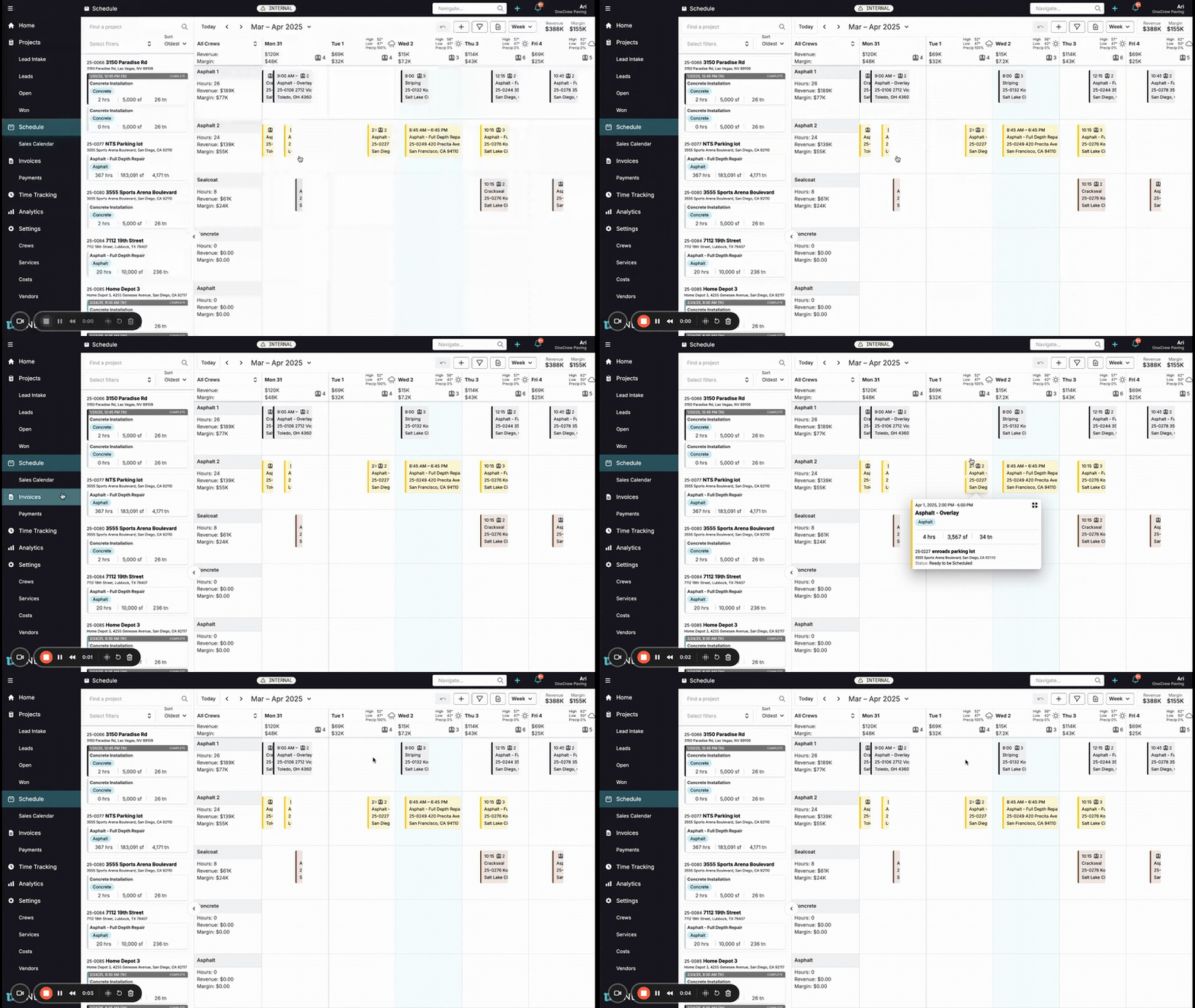
The General Events feature provides a flexible way to add non-service-specific activities directly onto your Schedule and Sales Calendar. Unlike standard job entries that are typically tied to specific customer services and projects, General Events allow you to block out time for a wide array of internal or preparatory tasks. This enhances your scheduling capabilities, offering a more holistic view of crew availability and operational commitments.
The primary benefit of using General Events is the increased control and clarity it brings to your daily and weekly planning. You can account for all types of crew activities, not just billable jobs. This leads to more accurate scheduling, reduced conflicts, and better resource management. Whether it's team meetings, training sessions, or vehicle maintenance, General Events ensure these crucial activities are visually represented and factored into your operational workflow.
Insight: General Events transform your schedule from just a job list into a comprehensive operational command center, giving you a true bird's-eye view of all crew activities.
Configuration
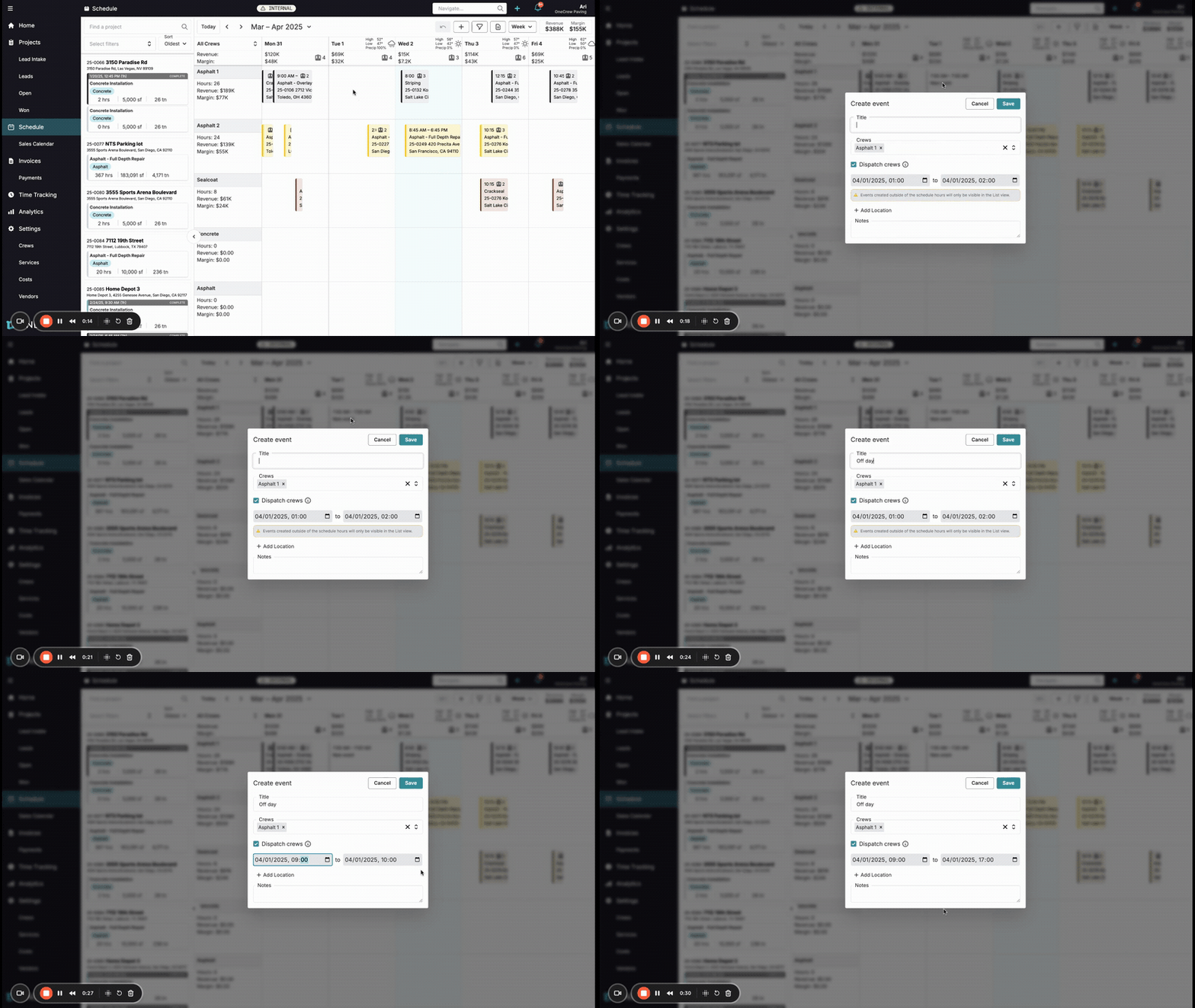
Setting up General Events is straightforward. You can add them to the schedule for specific crews and timeframes, with options to include location details and dispatch information.
There are two primary methods to create a General Event:
Using the 'Create event' button: Click the plus icon (+ Create event) typically located at the top of the Schedule or Sales Calendar view. This will open a blank event creation form.
Double-clicking on the schedule: Directly double-click on a crew's row on the desired day within the schedule grid. This action pre-fills the crew and the date for the new event.
Once the Create event modal appears, you can configure the following details:
Title: A descriptive name for the event (e.g., "Morning Safety Briefing," "Asphalt 1 Crew - Off Day").
Crews: Assign one or more crews to the event. If you double-clicked on a specific crew's schedule, that crew will be pre-selected. You can add or remove crews as needed.
Date & Time: Specify the start and end date and time for the event.
Note: A message in the modal indicates: "Events created outside of the schedule hours will only be visible in the List View."
Dispatch crews: This checkbox is crucial:
Checked: The event will be sent to the assigned crew(s) dispatch view, making it visible on their mobile devices. This is ideal for events requiring crew action or awareness (e.g., meetings at a specific location, tasks).
Unchecked: The event will only appear on the main schedule for planners and managers. It serves as a visual block but won't be pushed to the crew's mobile dispatch. Use this for purely informational blocks or tentative holds.
Add Location: Optionally, you can associate a specific location with the event. Clicking + Add Location reveals fields for:
Street (Search for an address)
Additional address line
City
State
ZIP Code
You can also Remove Location if added in error. If a location is added and Dispatch crews is checked, this address will be available to the crew.
Notes: Add any relevant details, instructions, or context for the event. If Dispatch crews is checked, these notes will be visible to the crew on their mobile view.
After configuring all details, click Save. The event will then appear on the schedule.
Managing Existing General Events
Once created, General Events offer flexibility:
Reschedule: Drag and drop an event to a new time slot or a different day.
Adjust Duration: Click and drag the edges of an event block to extend or shorten its duration. This can span across multiple days.
View Details: Hover over an event on the schedule to see a quick summary, including its title, date, time, and any notes.
Pro-tip: When an event, like an internal admin block, doesn't require crew members to travel or see it on their mobile dispatch, uncheck the Dispatch crews option. This keeps their mobile view focused on actionable jobs and events while still effectively blocking time on the main schedule for planning purposes.
Use Cases
General Events are versatile and can be used in numerous scenarios to improve organizational efficiency. Consider using this feature when you need to:
Block Out Crew Unavailability:
Schedule paid time off (PTO) or "Off Days" for entire crews or specific members.
Indicate training sessions or certification periods.
Mark company holidays or other non-working days.
Schedule Internal Tasks & Meetings:
Book team meetings, either at the office or a specific location.
Allocate time for equipment maintenance or yard preparation.
Schedule internal project work or administrative tasks.
Manage Non-Billable Activities:
Account for travel time to distant job sites or between multiple locations if not part of a specific job's services.
Schedule supply pickups or material runs.
Tentative Bookings:
Create placeholders for potential jobs or appointments before they are formally converted into projects with services.
Pro-tip: Prefix General Event titles (e.g., "MAINT:", "TRAINING:", "PTO:") to quickly identify event types on a busy schedule, making it easier to scan and understand crew assignments at a glance.
Examples
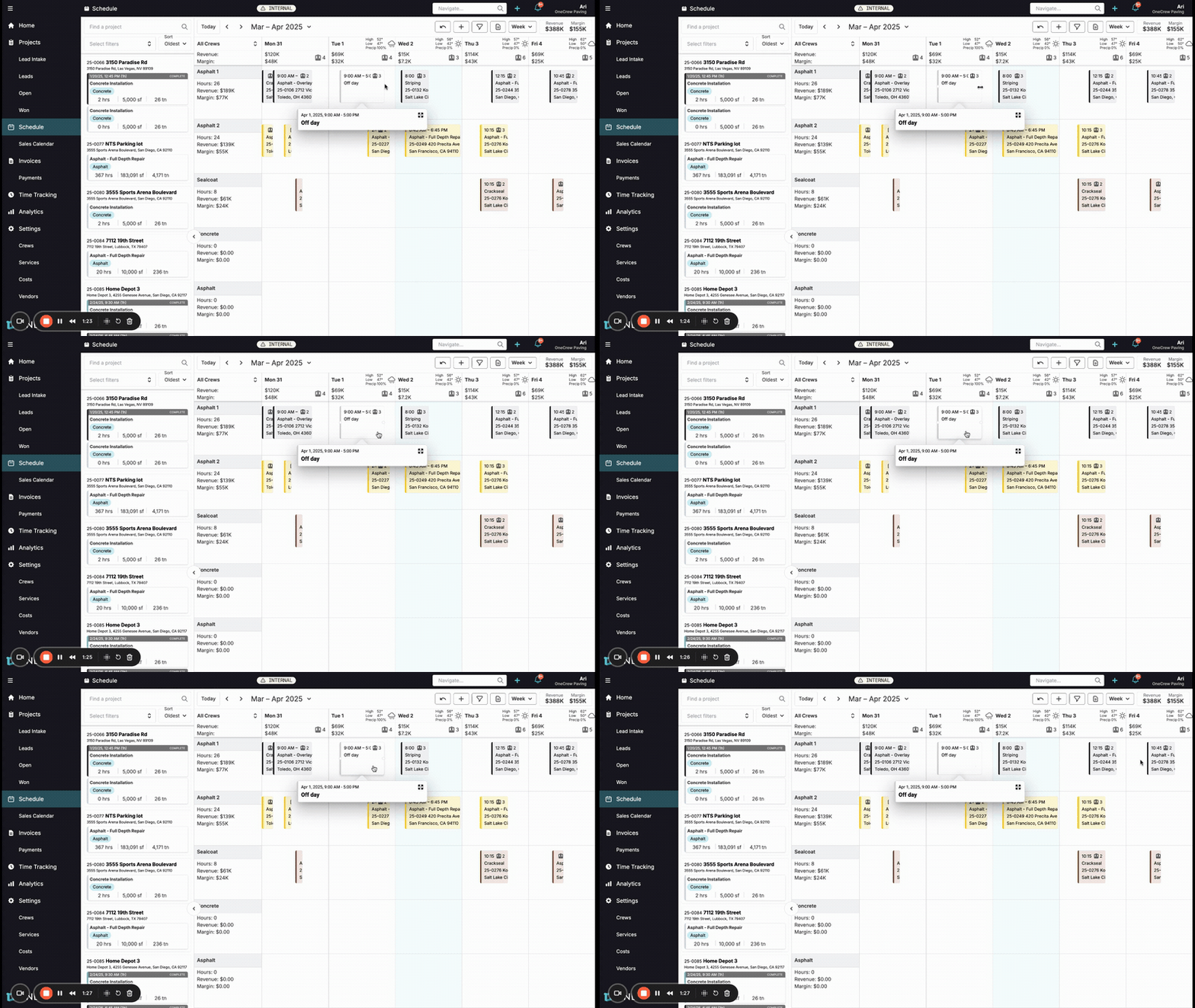
General Events can solve various scheduling challenges. Here are a few real-world examples:
Example 1: Scheduling an "Off Day" for a Crew
Problem: The "Asphalt 1" crew has requested next Tuesday off. You need to ensure they are not scheduled for any jobs and this is clearly visible on the schedule.
Solution:
Navigate to the Schedule view.
Double-click on the "Asphalt 1" crew's row for the specified Tuesday.
In the Create event modal, enter "Off Day" as the Title.
Set the Start Time to the beginning of the workday (e.g., 09:00) and the End Time to the end of the workday (e.g., 17:00).
Ensure "Asphalt 1" is listed under Crews.
Check the Dispatch crews box so the crew members see this confirmed day off on their mobile schedules.
Click Save. The "Off Day" block will now appear, preventing accidental scheduling.
Example 2: Arranging a "Mandatory Safety Training" with Location
Problem: All crews need to attend a mandatory safety training session next Friday morning at the main office.
Solution:
Click the + Create event button.
Enter "Mandatory Safety Training" as the Title.
In the Crews field, select all relevant crews (e.g., "Asphalt 1", "Asphalt 2", "Sealcoat").
Set the Date to next Friday and the Time from 08:00 to 10:00.
Click + Add Location and enter the address of the main office.
In the Notes field, add details like "Room: Conference A. Bring safety manuals."
Ensure Dispatch crews is checked.
Click Save. The event will block all selected crews and provide them with the location and details for the training.
Example 3: Blocking Time for "Shop Maintenance - Equipment Check"
Problem: You need to allocate time for a specific crew, "Concrete Installation," to perform routine equipment checks and maintenance at the shop before a busy week. This isn't tied to a customer job.
Solution:
On the Schedule, find the "Concrete Installation" crew's row for Monday morning. Double-click to create an event.
Set the Title to "Shop Maintenance - Equipment Check."
Adjust the time from 07:00 to 09:00.
Click + Add Location and input the shop's address.
Add Notes: "Inspect concrete mixer, check fluid levels on compactors. Report issues to supervisor."
Keep Dispatch crews checked so the crew is aware of this scheduled task and its location.
Click Save. This dedicates time for essential maintenance and makes it visible to both planners and the crew.
Insight: The ability to add locations to General Events, such as for a "Supply Run to Home Depot" or a "Pre-Job Site Visit," streamlines logistics by providing clear, actionable information directly within the schedule, ensuring crews know not just what to do, but where to do it.