OneCrew Dispatch
Last updated: August 7, 2025
Watch Video Demo Here
Overview
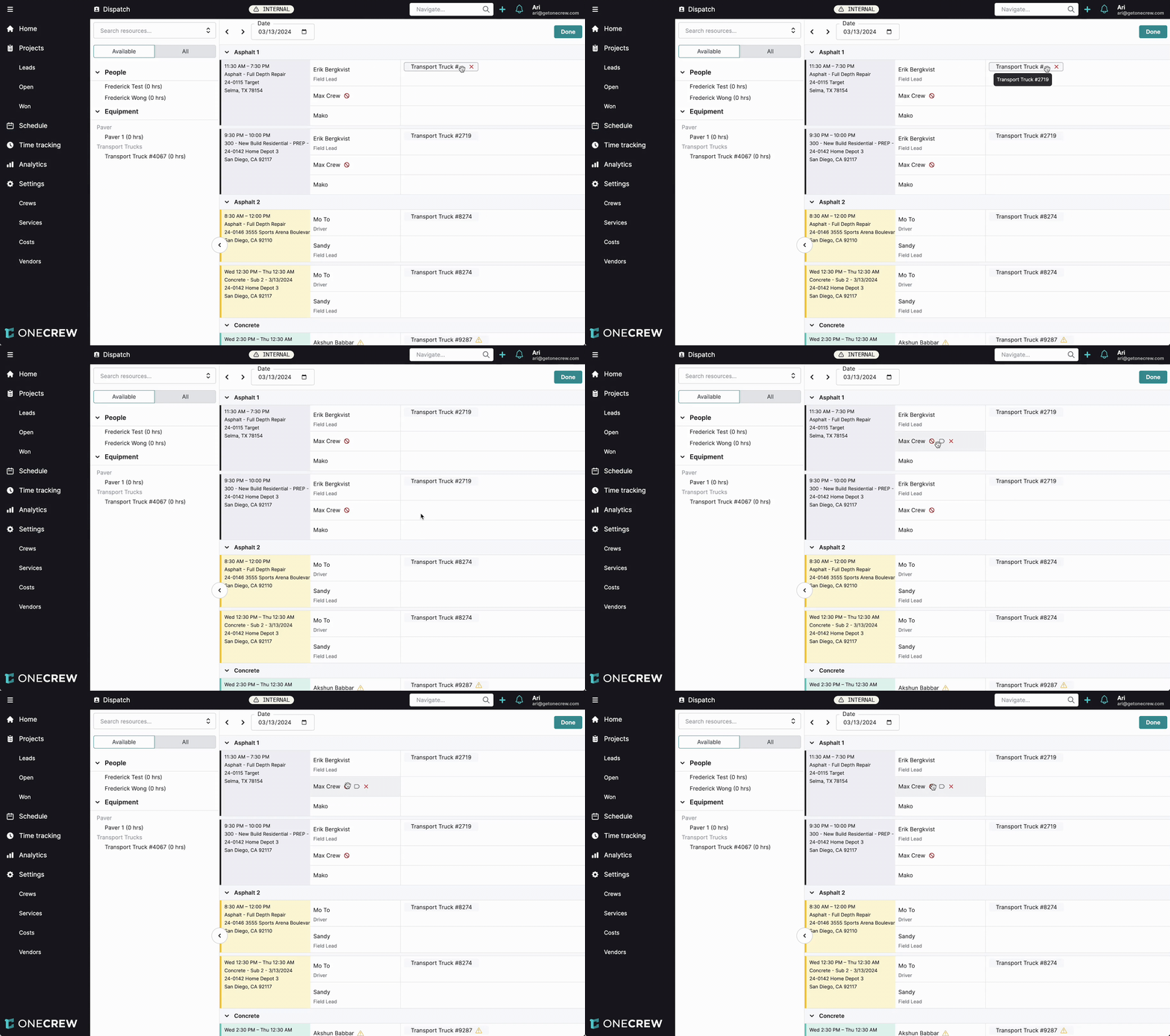
OneCrew Dispatch is a powerful feature designed to provide both flexibility and accuracy in managing your field operations. Its core purpose is to streamline the assignment of personnel and equipment to jobs, ensuring that everyone, whether in the office or out in the field, has the correct, up-to-date information. By centralizing dispatch operations, businesses can optimize resource allocation, improve communication, and enhance overall efficiency.
The scope of the Dispatch feature encompasses the entire process of assigning resources to scheduled events or jobs. This includes selecting specific individuals, designating their roles using labels, and allocating necessary equipment. The benefits are manifold:
Real-time Accuracy: Ensures all team members have the latest information.
Improved Communication: Reduces confusion by providing a single source of truth for assignments.
Enhanced Efficiency: Simplifies the scheduling and resource allocation process.
Seamless Integration: Dispatched information flows directly to the Mobile View for field crews and populates Time Tracking, making daily operations smoother.
Insight: Dispatch transforms scheduling from a static plan into a dynamic, real-time operational dashboard, empowering dispatchers to react swiftly to changes and ensuring field teams are always in the know.
Configuration
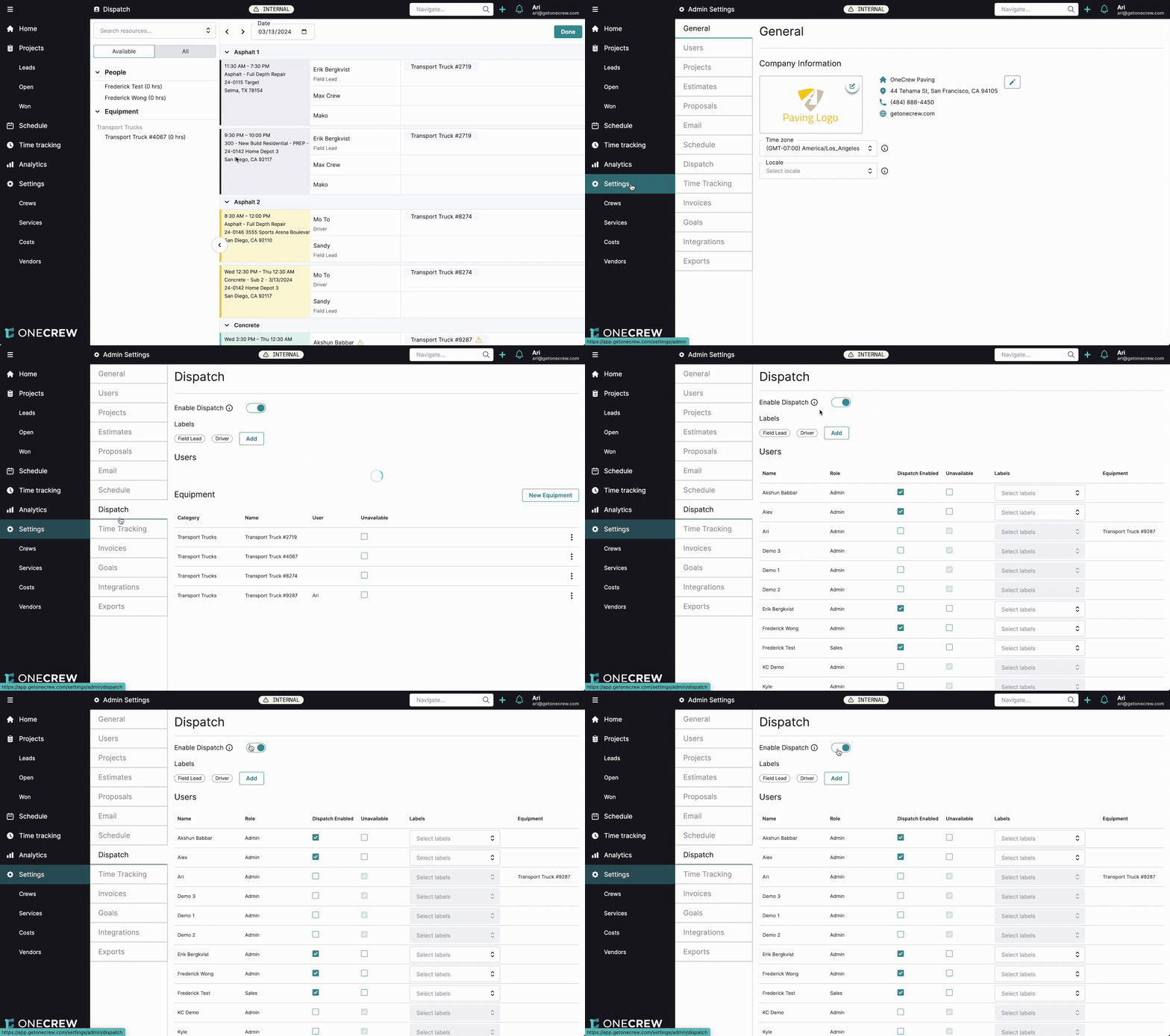
To harness the full potential of Dispatch, proper configuration is key. This involves enabling the feature, setting up labels, and managing users and equipment.
Enable Dispatch: Navigate to Settings from the main menu. Select Dispatch from the settings submenu. Toggle the Enable Dispatch switch to the "on" position.
Labels
Labels are tags you can create to categorize users by roles, skills, or certifications. These labels appear on the Dispatch board, providing quick visual cues.
Creating Labels: In the Labels section, click the Add button. Enter the name of your label (e.g., "Field Lead", "Driver", "CDL Certified", "Trainer", "Trainee") and save.
Editing Labels: Click on an existing label to modify its name.
Assigning Labels to Users: Labels can be assigned to users as default roles or ad-hoc within the Dispatch view itself.
Users
Configure which users are available for dispatch and their default properties.
Enable Users for Dispatch: In the Users table, each user in your OneCrew account is listed. Check the Dispatch Enabled box for each user you want to make available for dispatching.
Mark Users as Unavailable: If a user is temporarily unavailable (e.g., on vacation), check the Unavailable box next to their name. This will visually indicate their status on the Dispatch board.
Assign Default Labels to Users: In the Labels column for a user, click Select labels and choose any labels that typically apply to this user (e.g., "Field Lead" for Erik Bergkvist). These labels will automatically be applied when they are dispatched.
Assign Default Equipment to Users: If a user typically operates a specific piece of equipment, you can assign it to them by default in the Equipment column. This equipment will automatically be dispatched with them.
Equipment
Manage your fleet and tools for easy assignment.
Adding Equipment Categories: While adding a new piece of equipment, if its category doesn't exist, you can type the new category name (e.g., "Pavers", "Transport Trucks") in the Category field, and the system will prompt you to create it.
Adding New Equipment:
Scroll down to the Equipment section.
Click the New Equipment button.
Enter the Name of the equipment (e.g., "Paver 1").
Select or create a Category.
Optionally, select a Default User if a specific person usually operates this equipment.
Click Create.
Marking Equipment as Unavailable: If a piece of equipment is out for maintenance or otherwise unusable, check the Unavailable box next to its entry in the Equipment list.
Pro Tip: Regularly review and update user availability and default labels/equipment to ensure your Dispatch board reflects the most current operational status.
Use Cases
The Dispatch feature is invaluable in a variety of scenarios common in field service operations:
Daily Crew Assignments: Efficiently assign full crews to specific jobs for the day, ensuring all roles are covered. For example, dispatching an asphalt crew to three different repair jobs, ensuring each job has a field lead, drivers, and laborers.
Equipment Allocation: Assign specific pieces of equipment (e.g., "Transport Truck #2719", "Paver 1") to individual crew members or jobs. This is crucial for tracking equipment usage and ensuring the right tools are on site.
Managing Resource Availability: Mark personnel as Unavailable (e.g., for vacation, sick leave) or equipment as Unavailable (e.g., for maintenance). This prevents accidental assignment and provides a clear view of resource capacity.
Role-Specific & Certification-Based Assignments: Use labels like "Field Lead," "Driver," or "CDL Certified" to ensure that individuals with the correct skills or certifications are assigned to appropriate tasks. For instance, ensuring only a "CDL Certified" driver is assigned to operate a heavy transport truck.
Dynamic Re-dispatching: Quickly adjust assignments in response to unforeseen circumstances, such as a crew member calling in sick or urgent job priority changes. A user can be dragged from one job to another, or replaced, with immediate updates.
Training Oversight: Assign a "Trainer" label to experienced personnel and a "Trainee" label to new hires, then dispatch them together to facilitate on-the-job training.
Examples
Let's walk through some real-world scenarios to illustrate how Dispatch adds value:
Scenario 1: Setting up a New Field Lead and Their Default Equipment
Configuration:
Go to Settings > Dispatch.
Under Labels, add a new label called "Field Lead" if it doesn't exist.
In the Users list, find "Erik Bergkvist." Enable him for Dispatch.
In Erik's row, click Select labels and choose "Field Lead."
Under Equipment, click New Equipment. Name it "Company Tablet," categorize it as "Electronics," and set "Erik Bergkvist" as the Default User.
Dispatching:
Navigate to the Schedule and open Dispatch for the desired day.
Drag "Erik Bergkvist" from the People list on the left to a job, for example, "Asphalt 1 - Full Depth Repair."
You'll see "Erik Bergkvist" assigned to the job with the "Field Lead" label. The "Company Tablet" will also automatically be assigned to him for that job.
Scenario 2: Assigning a Specific Truck to a Job with a Driver
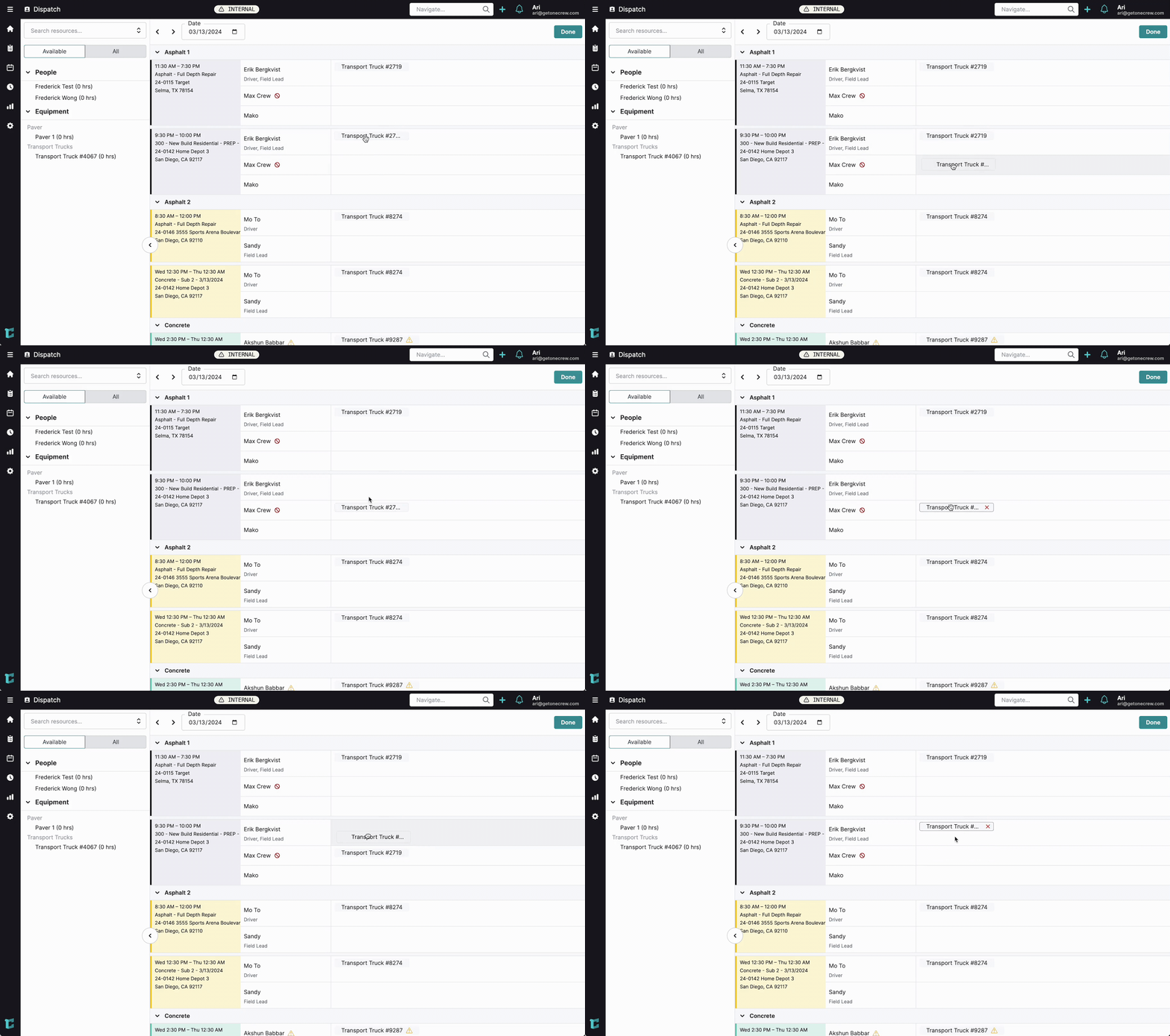
Edit animation
Configuration (if not already done):
Ensure "Mo To" is Dispatch Enabled and has a default label of "Driver."
Ensure "Transport Truck #8274" is listed under Equipment.
Dispatching:
Open Dispatch for the day.
"Asphalt 2" crew has an event: "Asphalt - Full Depth Repair." "Mo To" is already assigned as part of the crew.
From the Equipment list on the left (under the Available or All tab), find "Transport Truck #8274."
Drag "Transport Truck #8274" and drop it onto "Mo To" under the "Asphalt 2" job. The truck is now assigned to Mo To for that specific task.
Scenario 3: Managing a Crew Member's Unavailability
Configuration:
Go to Settings > Dispatch.
Find "Max Crew" in the Users list.
Check the Unavailable box next to Max Crew's name.
Dispatch View:
When you open Dispatch for any day Max Crew was previously assigned, or if you view the All tab in the resources panel, Max Crew will have an icon indicating he is unavailable, preventing accidental dispatch.
Scenario 4: Dynamic Re-assignment
Dispatching:
On the Dispatch board, "Max Crew" is assigned to "Asphalt 1 - Full Depth Repair."
A new, urgent job under "Asphalt 2" requires Max.
Simply click and drag "Max Crew" from the "Asphalt 1" job slot and drop him into an empty slot or replace another user on the "Asphalt 2" job. If "Max Crew" has default equipment (e.g., "Paver 1"), it will automatically move with him to the new assignment.
These examples showcase the flexibility and control Dispatch offers, ensuring that the right resources are in the right place, with the right tools, every time. The information then seamlessly flows to team members via the mobile app and streamlines time tracking entries.