Schedule: Navigating the Month View
Last updated: August 7, 2025
Get a bird's-eye view of your scheduled work with the Month View in OneCrew. This guide helps you quickly understand your monthly schedule at a glance, boosting your confidence as you start.
Key Features
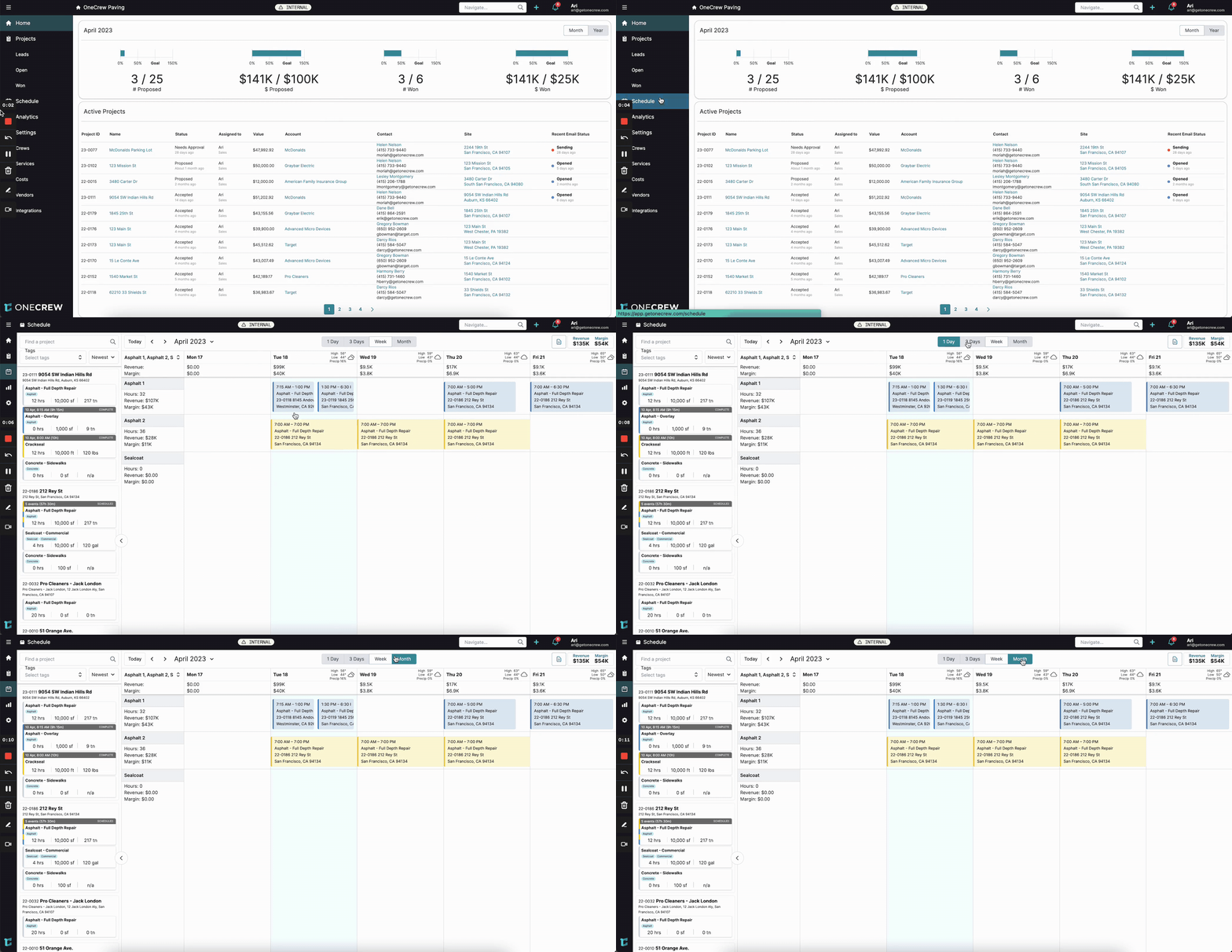
Access Month View: Go to Schedule from the main navigation, then click the Month button in the time period options at the top.
Monthly Overview: Instantly see all scheduled jobs for the selected month. Daily and total monthly revenue/margin figures are also displayed for a quick financial overview.
Navigate & Inspect:
Use the dropdowns near the date (e.g., "April 2023") to filter by specific Crews or change the displayed month.
Click on a day number in a grayed-out area (representing a previous or next month) to jump directly to that month's view.
Hover over any scheduled job on the calendar to see a pop-up with quick details like project name, service type, and work order information.
Click a day's number within the current month to switch to the Week View for that specific week.
Insight: The Month View is perfect for long-term planning and quickly assessing overall crew workload and revenue projections for the entire month.
Common pitfalls
The Month View is designed for viewing and high-level planning, not for direct scheduling actions.
You cannot drag and drop jobs from the Service Queue (left-side panel) or the Event Sidebar (right-side panel, if open) onto the Month View calendar to schedule them.
To schedule or modify job timings, please switch to the Day, 3 Day, or Week views. Learn more about scheduling jobs [add link to relevant article on scheduling].