Scheduling with OneCrew
Last updated: August 22, 2025
Watch Video Demo Here
Overview
Efficiently managing your projects from acceptance to completion is crucial. The OneCrew Schedule feature provides a powerful, visual tool to plan and assign work to your crews, track project progress, and monitor key financial metrics directly from a centralized calendar interface. This tutorial will guide you through the essentials of navigating and utilizing the schedule to streamline your operations.
Pro Tip: Maximize your calendar view by clicking the arrow icon next to the "Find a project" search bar to collapse the Service Queue panel.
Step-by-Step Guide
Follow these steps to effectively schedule your projects:
Access the Schedule & Understand the Layout
Navigate to the Schedule page from the main sidebar on the left.
The screen is divided into two main parts:
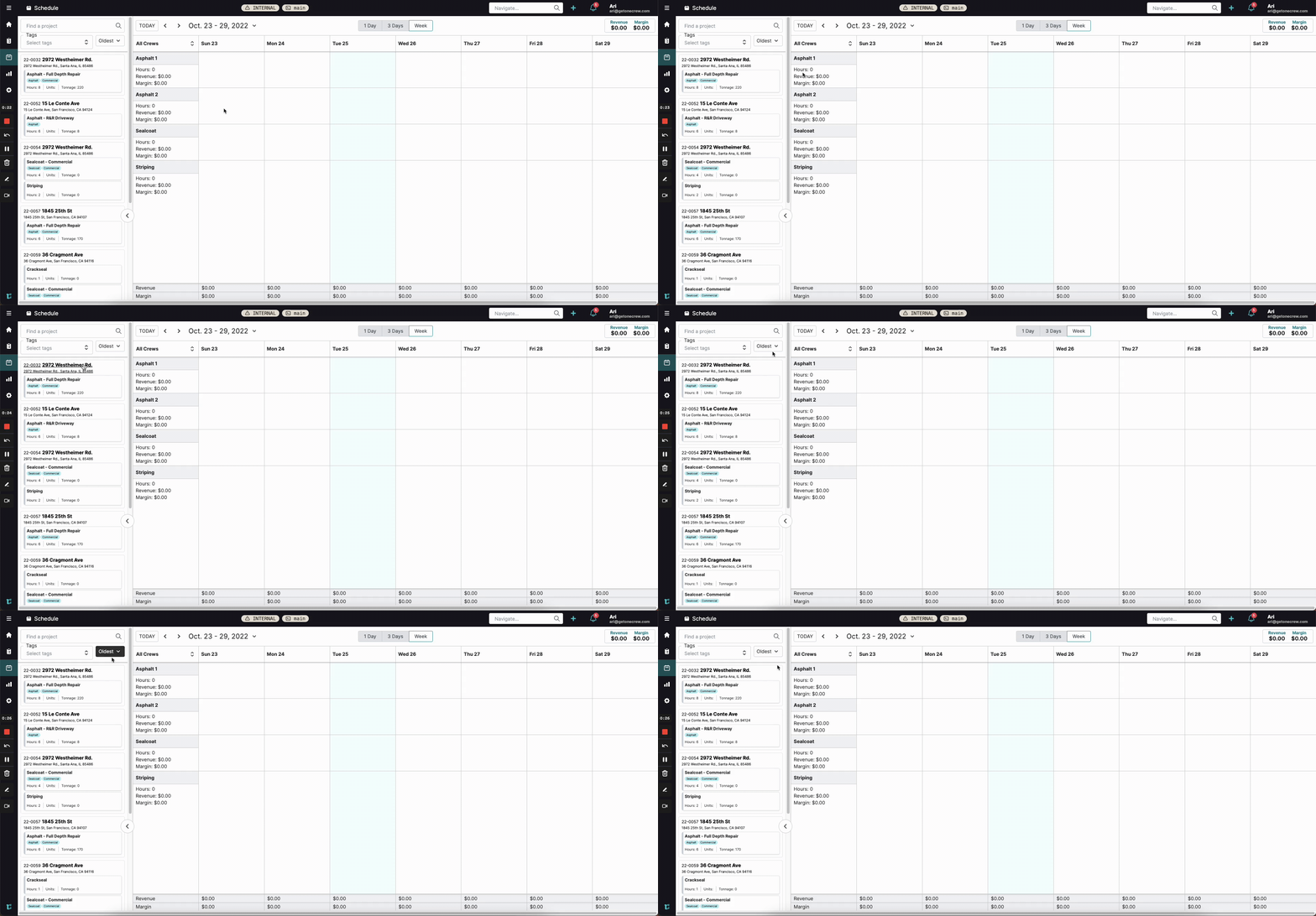
Service Queue (left panel): Lists all accepted projects and their individual services that are ready to be scheduled.
Calendar (right panel): Displays scheduled events for your crews.
Find Projects in the Service Queue
Use the Find a project search bar to quickly locate specific projects.
Filter the list using Tags (e.g., "Asphalt", "Commercial").
Sort projects by criteria like Oldest, Newest, or Price $$$ - $ using the dropdown menu.
Configure Your Calendar View
At the top of the calendar, use the Today button, navigation arrows ( >), or click the date range to open a date picker for selecting specific dates.
Choose your preferred view: 1 Day, 3 Days, or Week.
Use the All Crews dropdown (above the crew list) to filter the calendar to show only selected crews or all crews. Your crews will be listed vertically on the left side of the calendar.
Insight: Assigning specific crews to your user profile (in settings) will make the schedule default to showing only those crews, decluttering your view if you manage a subset of the team.
Schedule a Project Service
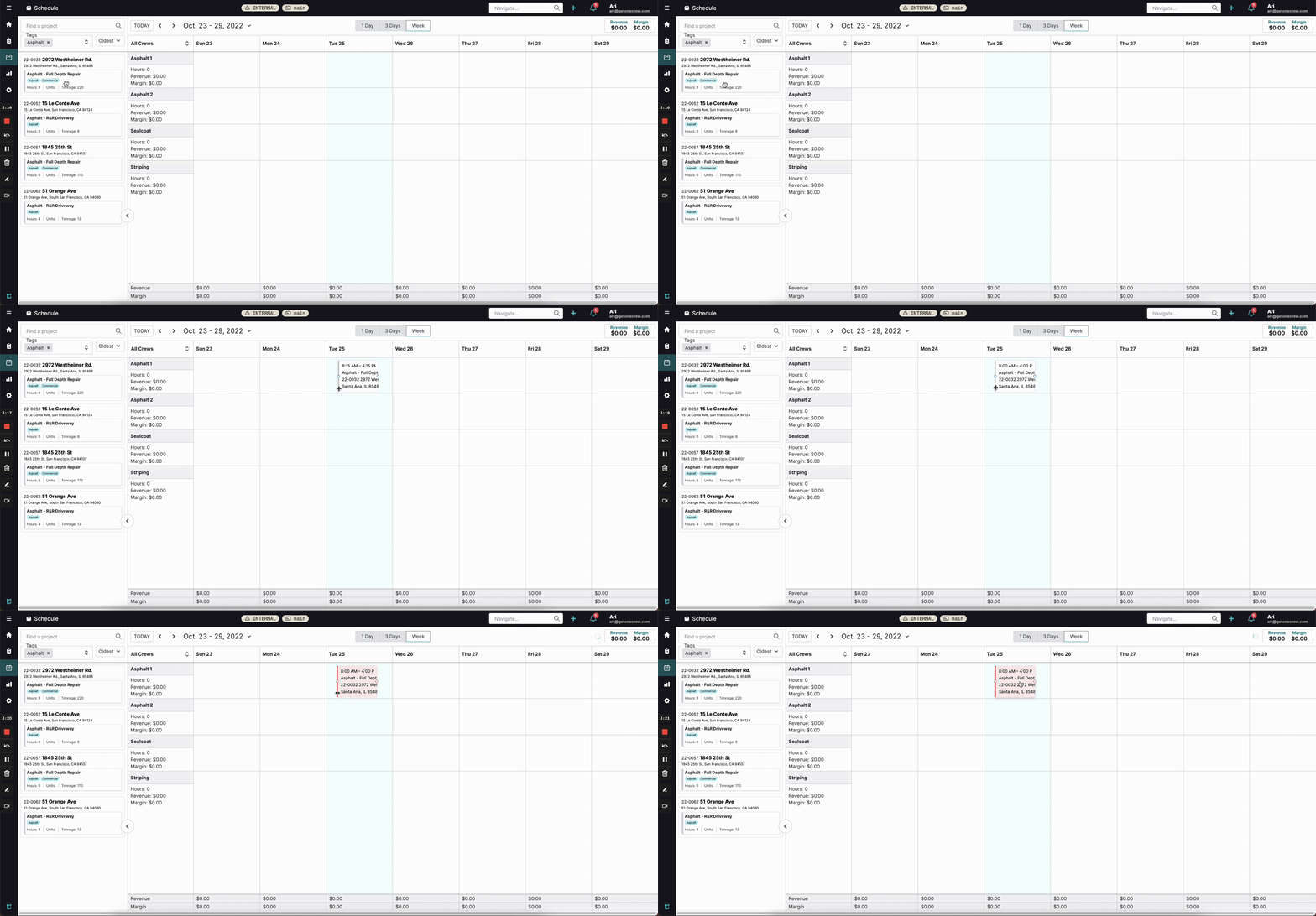
Locate the project or specific service you want to schedule in the Service Queue.
Click and drag the project/service card from the queue onto the calendar.
Drop the card onto the desired crew's row at the specific date and time slot. The scheduled event will appear, color-coded by crew.
Once a service is fully scheduled, it will be removed from the Service Queue. If a project has multiple services, the main project card will remain in the queue until all its services are scheduled, with individual services showing a "COMPLETE" status as they are placed on the calendar.
Adjust Event Details & Schedule Multi-Instance Services
Click on any scheduled event on the calendar to open the Details Panel on the right.
This panel displays labor hours, materials, equipment, and other information pulled from the estimate.
You can adjust the event's Start/End Times or Date directly in this panel.
If a service requires multiple work sessions (e.g., prep work one day, main work another), you can drag the same service from the Service Queue again or click and drag from the listed services in the Details Panel to create another event on the calendar.
Review Scheduled Work & Key Metrics
Crew Metrics: Under each crew's name on the calendar, you'll see their total scheduled Hours, Revenue, and Margin for the current calendar view (1-day, 3-day, or week).
Daily Totals: At the bottom of the calendar, view the aggregated Revenue and Margin for each displayed day.
View Totals: When an event is selected and the Details Panel is open, the top right corner of the panel shows the total Revenue and Margin for all work scheduled within the current calendar view.
Troubleshooting
Project not in Service Queue: Ensure the project's estimate has been marked as "Accepted." Only accepted projects appear for scheduling.
Overlapping Events: The calendar allows scheduling overlapping events for the same crew; they will appear stacked. Manually review and adjust conflicting schedules as needed.
Metrics seem off for a multi-day service: Revenue and margin for services scheduled over multiple days are distributed proportionally based on the hours scheduled each day. Ensure you're looking at the correct daily or overall view for accurate totals.
Specific Crew Not Visible: Double-check the All Crews filter above the crew list on the calendar to ensure the desired crew is selected for display.