Scheduling Filters and Notes
Last updated: August 7, 2025
Watch Video Demo Here
Overview
Managing a busy schedule can be challenging. This tutorial will guide you through using Schedule Filters to focus on specific jobs and Schedule Notes to add important, event-specific details. These features help streamline your workflow, improve team communication, and ensure you have the right information at your fingertips.
Step-by-Step Guide
Using Schedule Filters
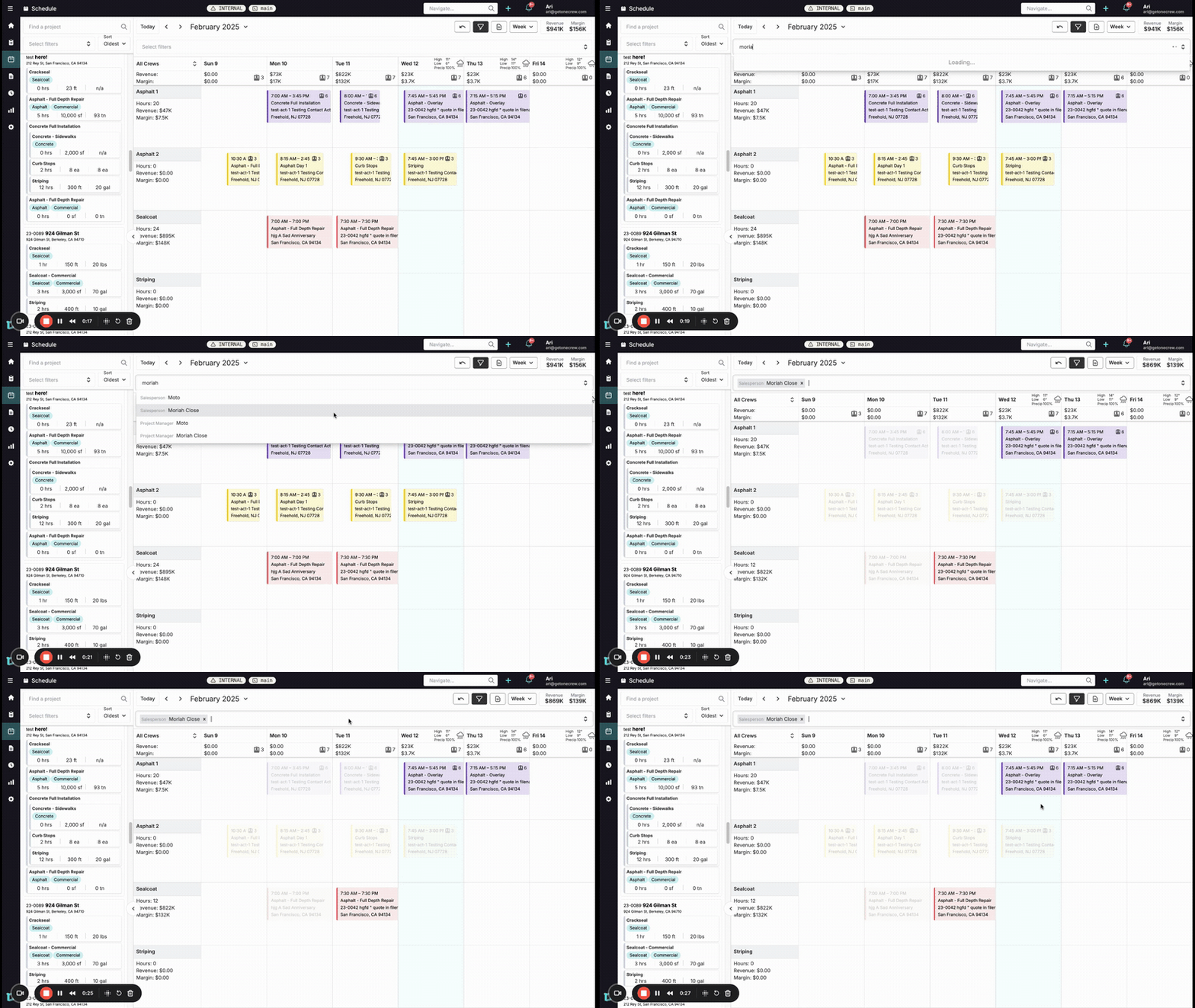
Filters allow you to narrow down the displayed events on your schedule, making it easier to focus on what's relevant to you or a specific team member.
Access Filters: Locate and click the Filter events icon (it looks like a funnel) in the upper right area of the schedule view. This action will reveal the filter bar.
Apply a Filter:
In the Select filters input field that appears at the top of the schedule, begin typing the name of a Salesperson or Project Manager (e.g., "Moriah").
Select the desired name from the dynamic dropdown list that appears.
View Filtered Schedule: The schedule will instantly update. Events associated with the selected person(s) will remain fully visible and highlighted, while all other events will appear greyed out. This allows you to see their specific jobs while still being aware of when other crews are occupied.
Check Updated Metrics: Observe that the Revenue and Margin figures displayed in the top right corner of the schedule now reflect the totals for only the filtered, highlighted events.
Add Multiple Filters: Filters are non-exclusive. You can add more than one filter of the same type (e.g., filter by "Moriah" and "Erik" as Salespeople). The schedule will then highlight events associated with either of the selected individuals.
Remove Filters: To remove an individual filter, click the 'x' icon next to its name tag in the filter bar. To close the filter bar and remove all active filters, click the Filter events icon again.
Insight: Schedule filters provide a dynamic way to analyze workloads and financial projections for specific team members or projects without losing the broader context of your overall operations.
Adding Schedule Notes
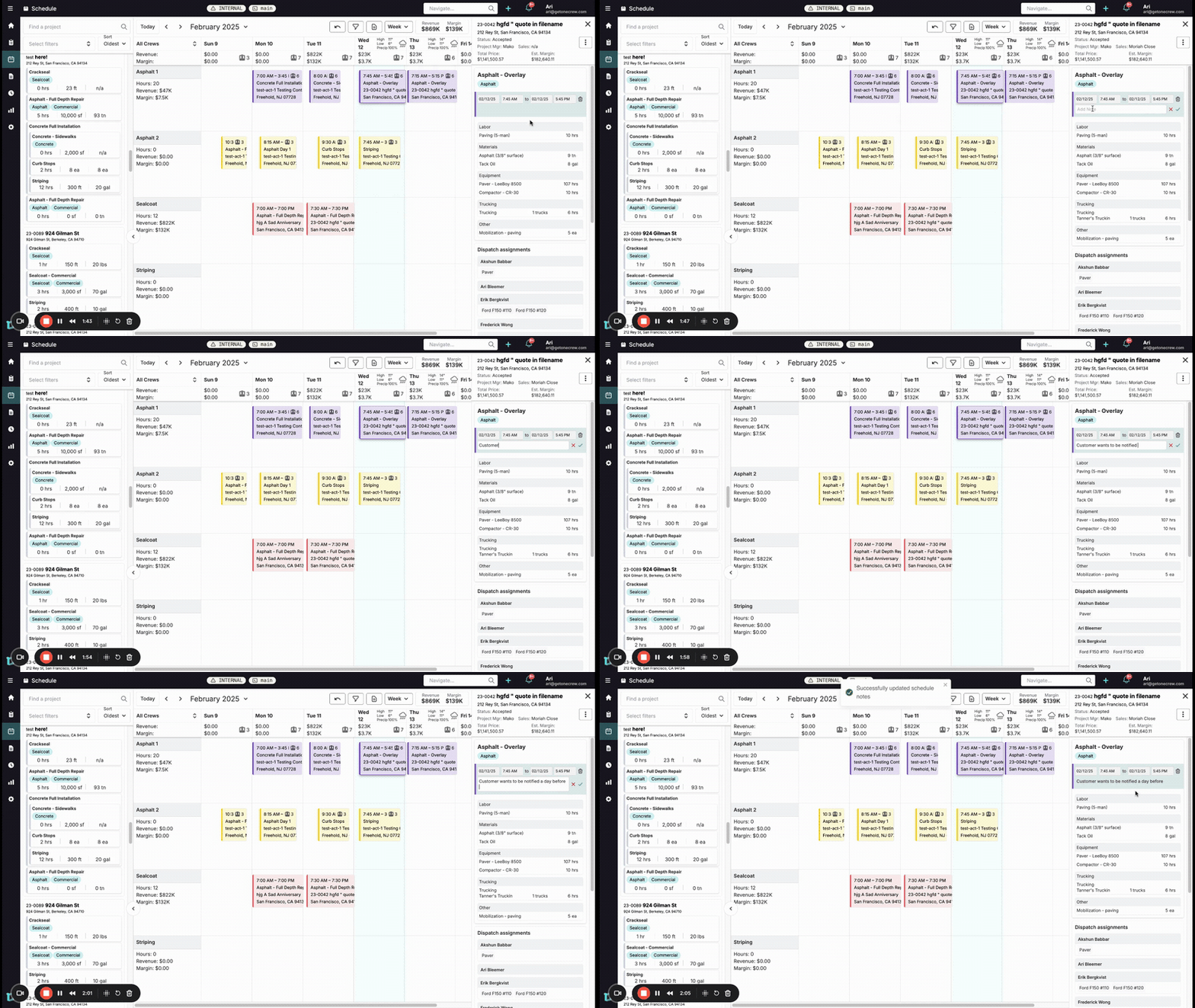
Schedule Notes are perfect for adding quick, event-specific reminders or instructions directly onto a scheduled job, visible to anyone viewing that event's details.
Select an Event: Click on any scheduled event block on the calendar. This action opens the event details pane, typically on the right side of your screen.
Locate the Notes Field: Within the event details pane, scroll or look for the Add Note input field.
Enter Your Note: Type your message or reminder directly into the Add Note field. For example: "Customer wants to be notified a day before."
Save the Note: To save your note, click the checkmark icon (✓) located to the right of the note field, or simply click anywhere outside the input field. A "Successfully updated schedule notes" confirmation may briefly appear.
View Saved Note: The note is now attached to that specific instance of the scheduled event. It's important to remember that these notes are event-specific; if you schedule another, separate instance of the same service, the note will not automatically carry over.
Pro Tip: Use Schedule Notes to communicate crucial last-minute details, specific instructions, or client requests that are pertinent only to a single job, ensuring dispatchers and crews have the information they need.
Troubleshooting
Filter Not Applying Correctly:
Double-check the spelling of the salesperson or project manager's name in the filter bar.
Ensure the individual actually has events scheduled within the date range you are currently viewing.
Schedule Note Not Saving:
Confirm you've clicked the checkmark icon or clicked outside the note field after typing.
A stable internet connection is required for changes to save properly.
Financial Metrics (Revenue/Margin) Not Updating with Filters:
Verify that the filter is correctly applied and is highlighting events.
If the filtered events have no financial values assigned to them, the metrics will accurately reflect $0.00.
If all events are filtered out (none match), metrics will also show $0.00.